Welcome to E-Power Maps
E-Power Maps is a field data-collection app for electrical infrastructure. Use it on Android and iOS to capture pole GPS, attach accessories, manage cable and transformer catalogs, sync with the server, and export a KMZ map of everything you collected to Google Earth — even when offline.
Live demo
Key highlights
Built into the E-Power Billing System
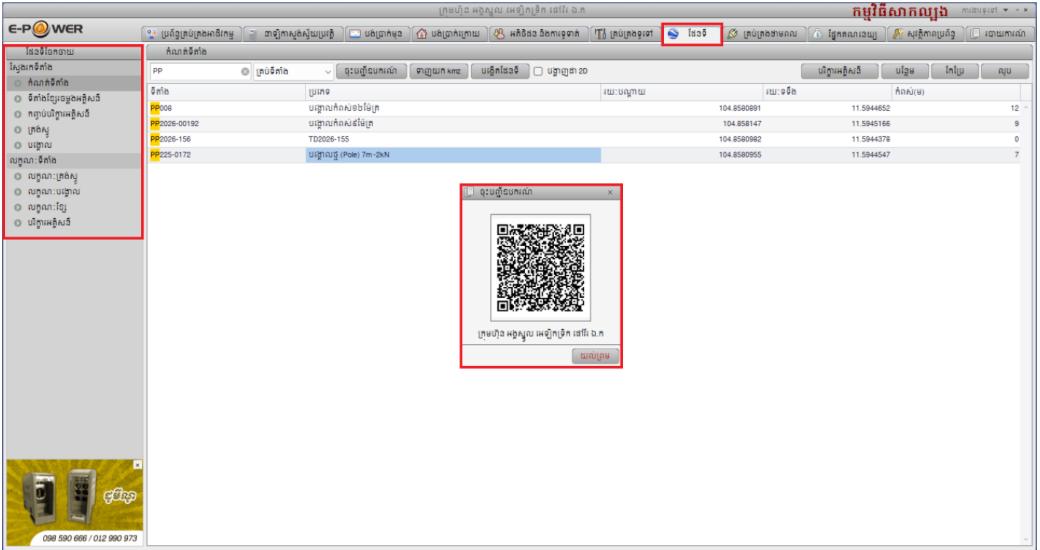
The Maps feature is integrated into the single E-Power Billing System, so it works alongside our new-generation workflow. A company is registered on the device by scanning a QR code generated from the desktop Billing System — no manual setup.
Works offline, syncs automatically
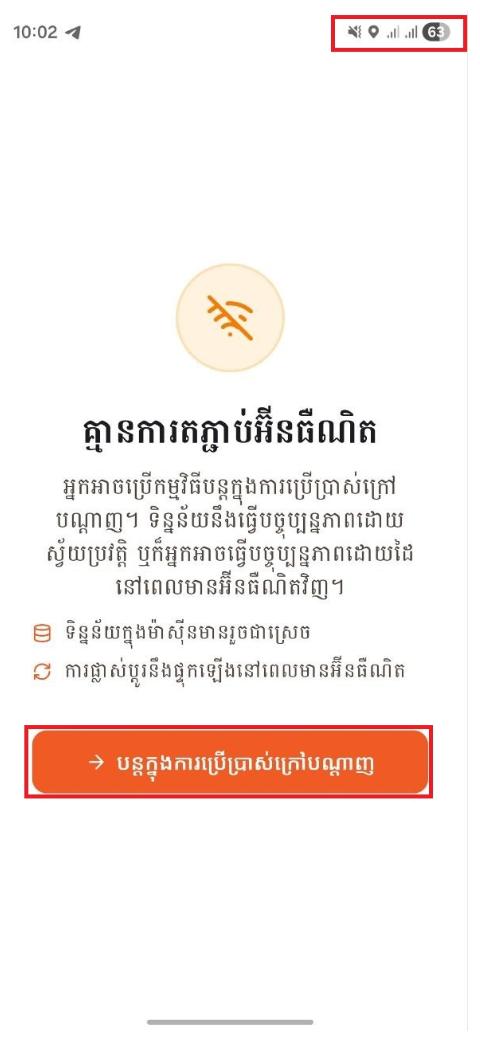
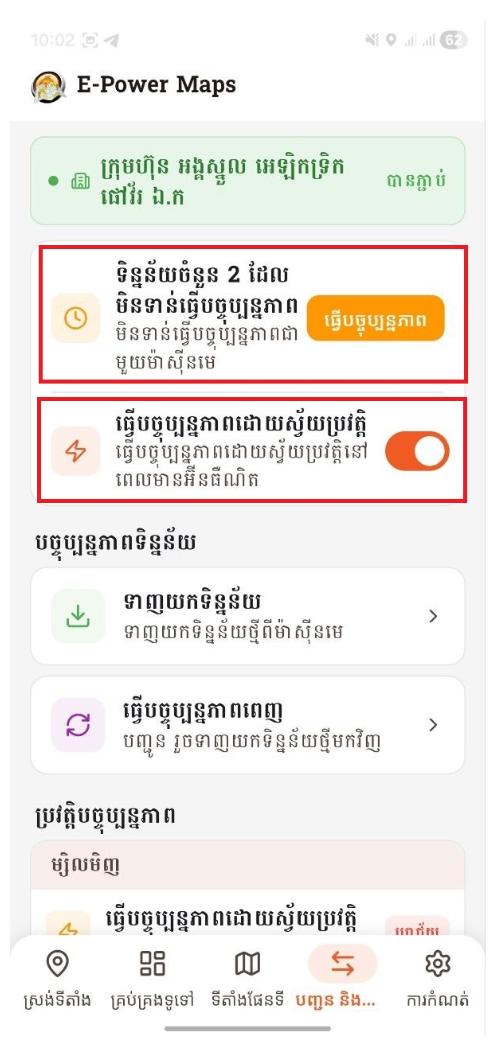
No internet? Keep working. The app stores everything locally and automatically sends your data to the Billing System the moment a connection returns. The offline screen lets you continue, and the Communicate tab shows any pending changes that will sync.
What this guide covers
Overview & field workflow
Admin catalog
Setup & extras
Before you start
- Install the app on Android (API 21+) or iOS.
- Grant Location permission (required) plus Camera (for QR company scan).
- Register your organisation by scanning the tenant QR code (Settings → Manage Tenants → Scan QR) — see step 14.
- Run an initial sync (Communication tab → Import Data) to pull your catalog from the server — see step 4.
- You're ready: the app opens to Dashboard (step 1). Switch to the Collect tab to start capturing poles (step 2).
1. Dashboard & Analysis
- Counts are server-authoritative:
GET /DashboardreturnsAccessoryCount,PackageCount,PlaceCount,PoleCount,StyleCount,CableStyleCount,TransformerStyleCount,TransformerCount,CollectedCount,NotCollectedCount. - Overview card: linear bar (collected vs not-collected) — non-collected slice rendered in red.
- Interactive donut chart: tap a slice → swaps the body chart / tab; not a static image.
- Pie chart (
fl_chart) of collected vs. uncollected poles + per-area breakdown. - Resilient: each
dao.queryCountwrapped insafeCount(); on failure shows error UI with retry button instead of spinning forever. - Lucide icons used across new admin tiles (cable, line-style, transformer-style) for visual consistency with existing entities.
The Dashboard screen
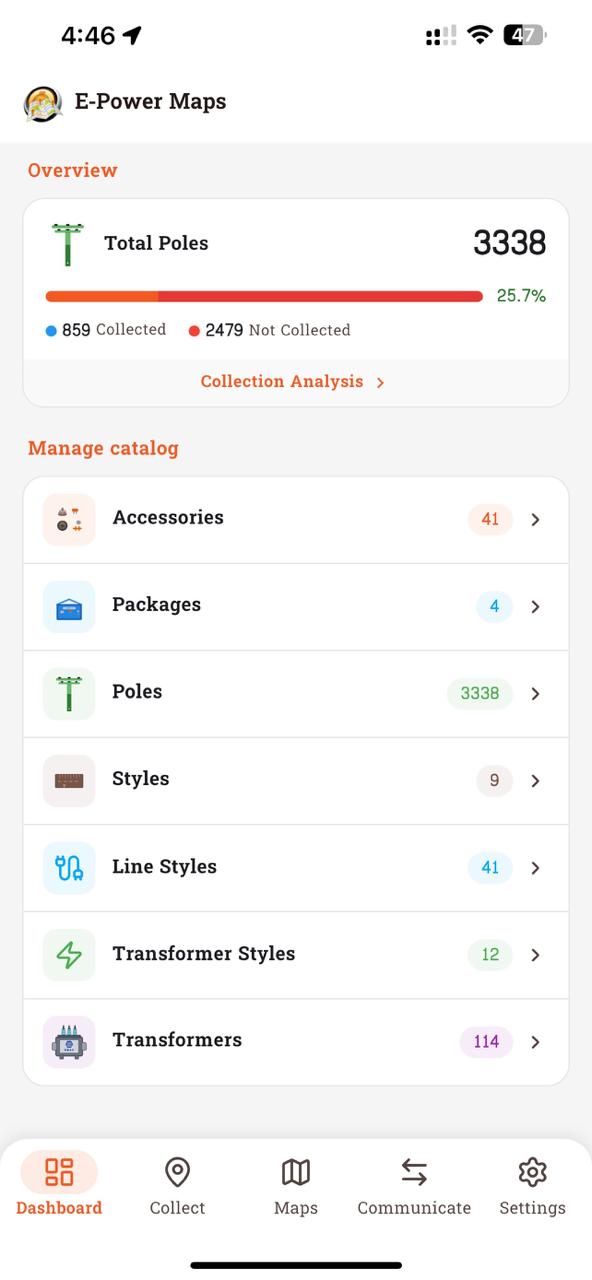
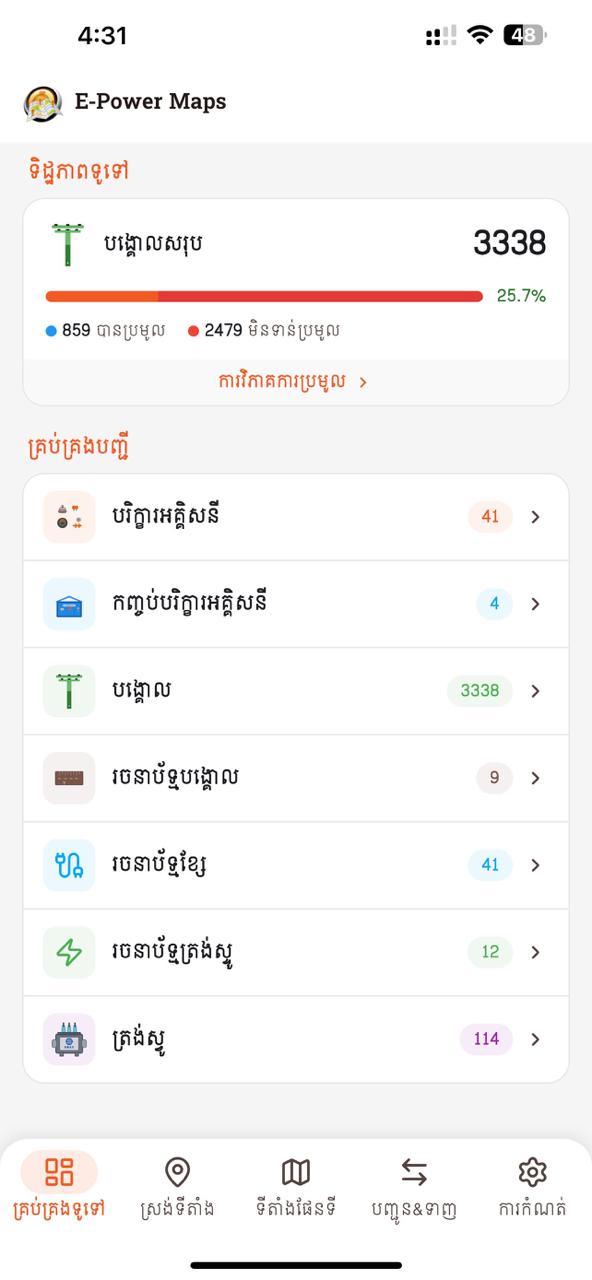
- 1Overview card — total Places, collected vs. pending counts, and a thin progress bar. Tap to drill into the Analysis charts.
- 2Manage Catalog — coloured icon tiles for each catalog (Accessories, Packages, Poles, Styles, Transformers, Line Styles, Transformer Styles, Cable, Distribution Method). Counts pulled from
/Dashboard. - 3Pull-to-refresh anywhere on the page to fetch fresh counts.
- 4Dashboard is the first tab and the post-splash landing screen.
Collection Analysis — drill-down
Tap the Overview card on Dashboard to open Collection Analysis: a progress bar, donut chart of the collected-vs-not-collected split, three count tiles, and a tab list of every pole grouped by area.
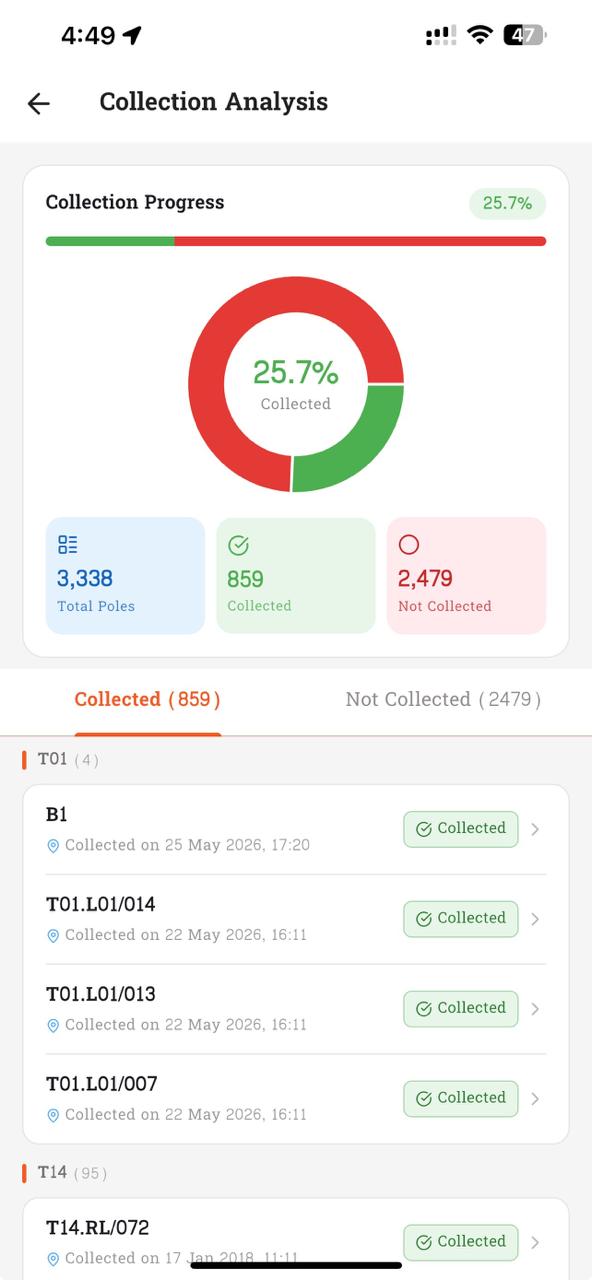
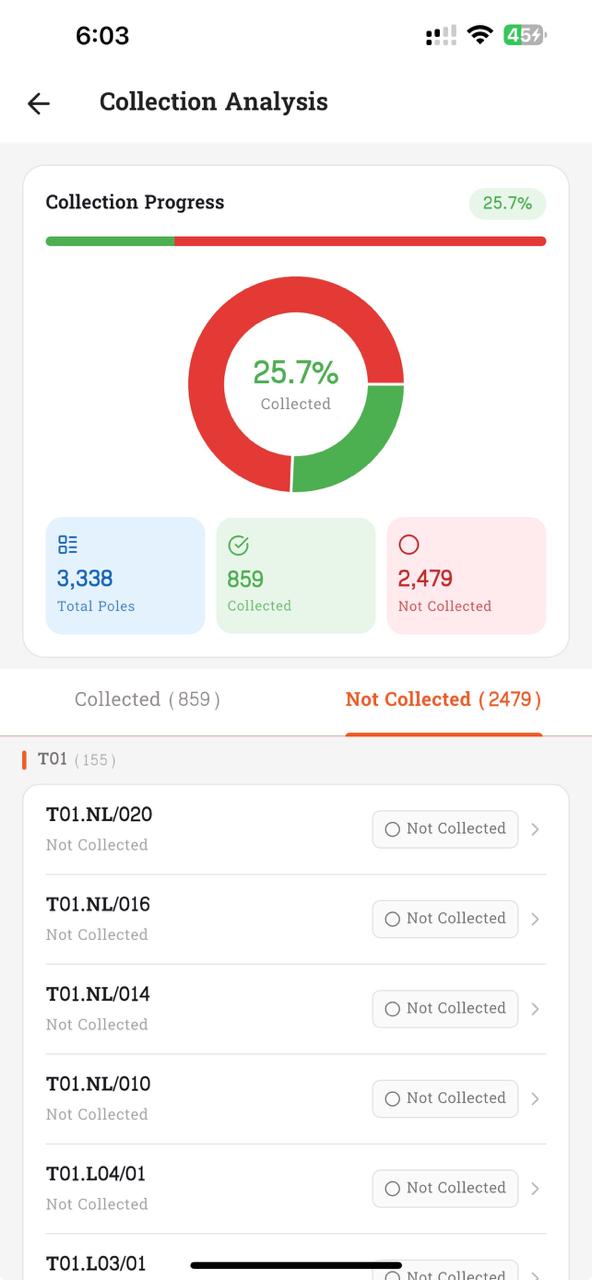
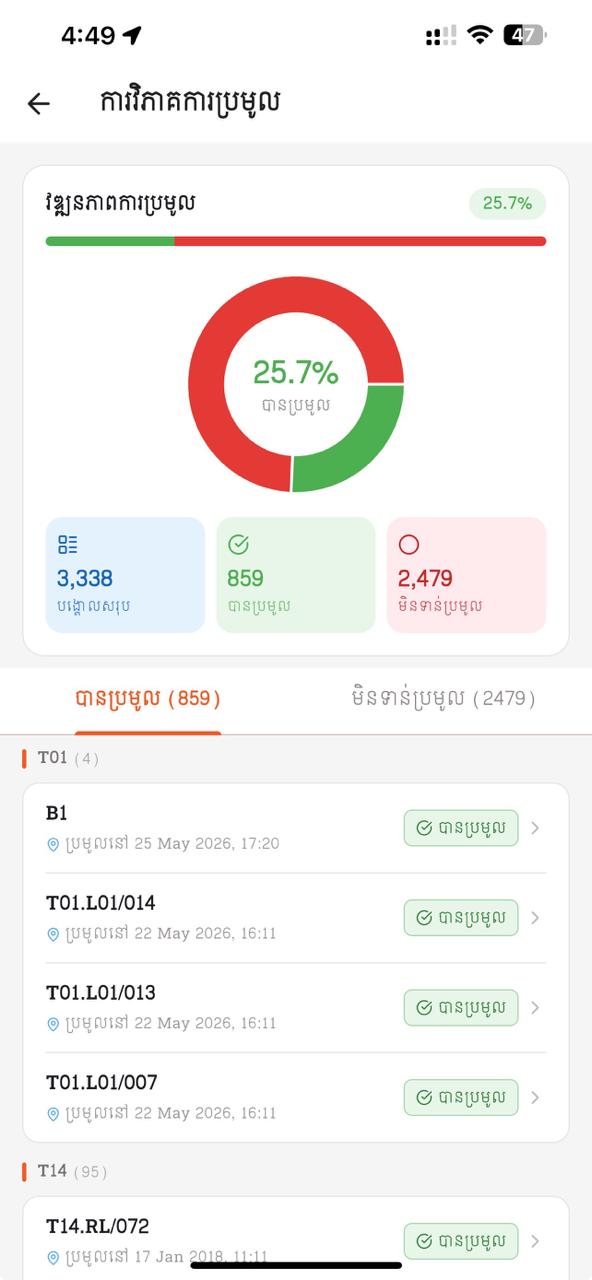
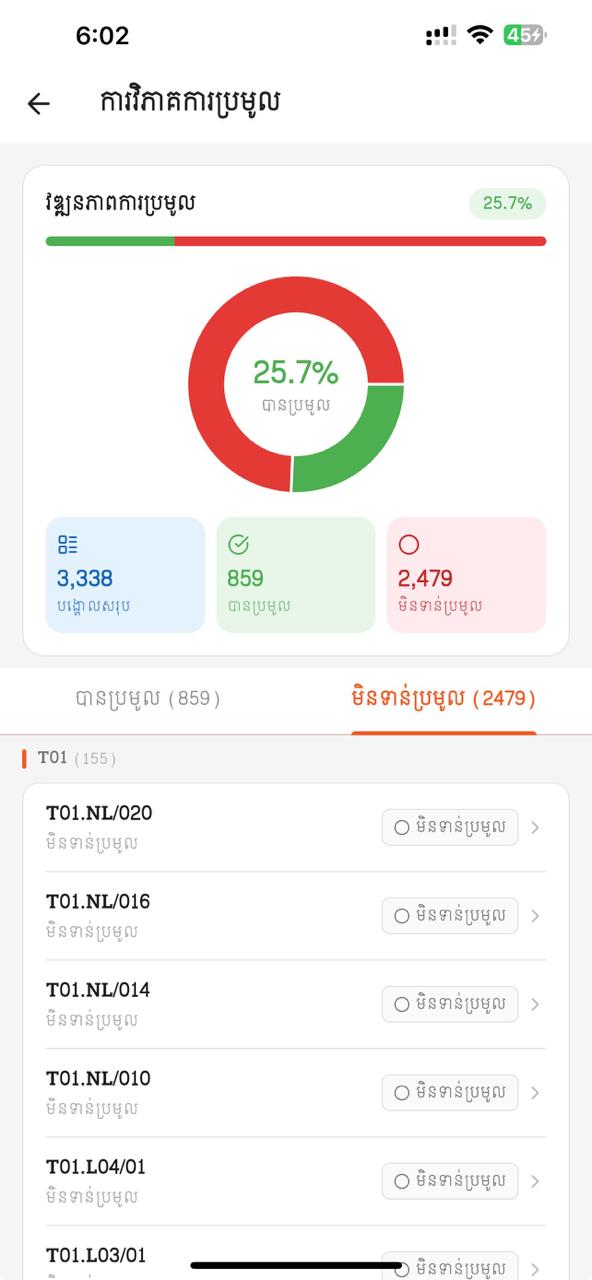
- 1Collection Progress bar — green = collected portion, red = not-collected. The percentage chip on the right mirrors the donut centre.
- 2Donut chart — interactive. Tap a slice to switch the focus between the Collected and Not Collected lists below.
- 3Three count tiles — Total Poles / Collected (green tick) / Not Collected (red ring). Numbers come straight from
/Dashboard. - 4Two tabs — "Collected (n)" and "Not Collected (n)". The active tab is underlined in orange. Left screenshot above shows the Collected tab (green pills with collection dates); right shows Not Collected (gray outlined pills, no date).
- 5Pole list — grouped by area (T01, T14 …). On Collected, each row shows pole code + "Collected on …" date + green "Collected" pill. On Not Collected, only the pole code + "Not Collected" label. Tap a row to open that pole's Place detail.
- Counts match the totals per admin list.
- After a new collection, analysis chart refreshes within the same session.
2. Collect — Capturing a pole
The core workflow used by field technicians to capture a pole's GPS, style, ownership, and accessories.
- Open Collect — the second tab of the bottom navigation bar. (The first is Dashboard; see chapter 1.)
- Place picker with search + "Add New Pole" inline sheet.
- New pole uses Place detail page (same ALL-CAPS + duplicate check + distinct-area picker).
- GPS via
geolocatorstream; distinct error states (service off / permission denied / forever / stream error) each with Snackbar + Settings shortcut. - Same visual cues retained: collected poles stop live updates and show stored coords in primary color; live updates render in the theme accent color. Accuracy figure shown in real time.
- Same style picker + ownership toggle; collected-vs-live color cue retained.
- Same accessory + package selection; quantities editable inline.
- Save persists locally and syncs to API — or queues to pending-sync when offline.
- Prev/Next retained. Multi-tenant aware: no tenant → writes to default DB.
The Collect screen
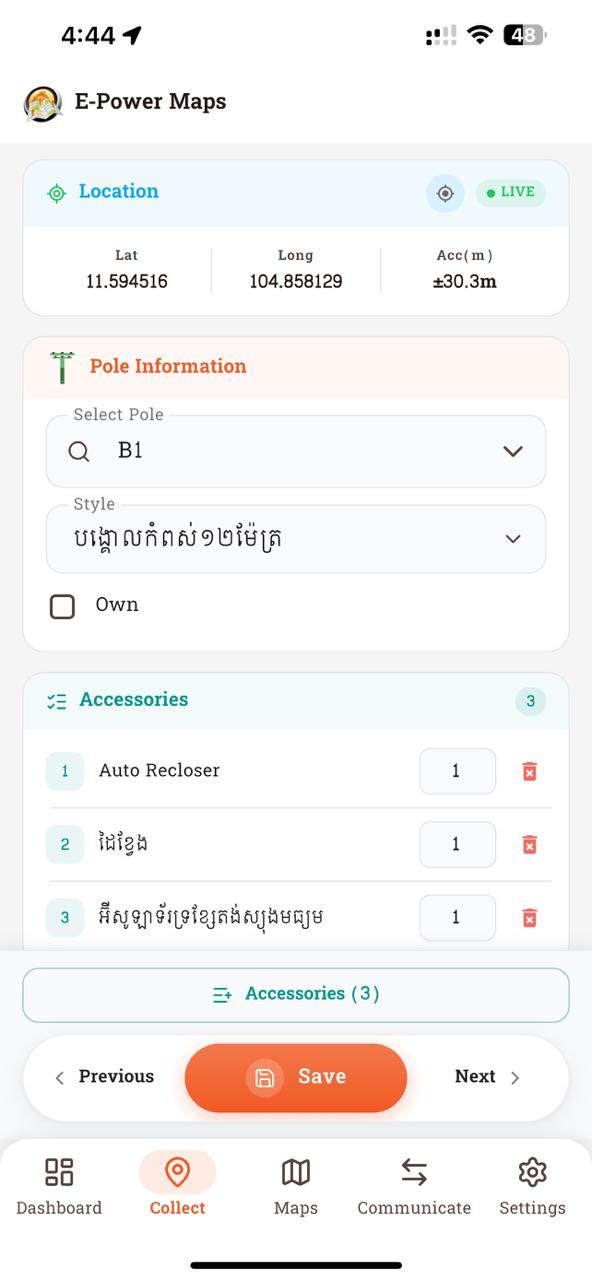
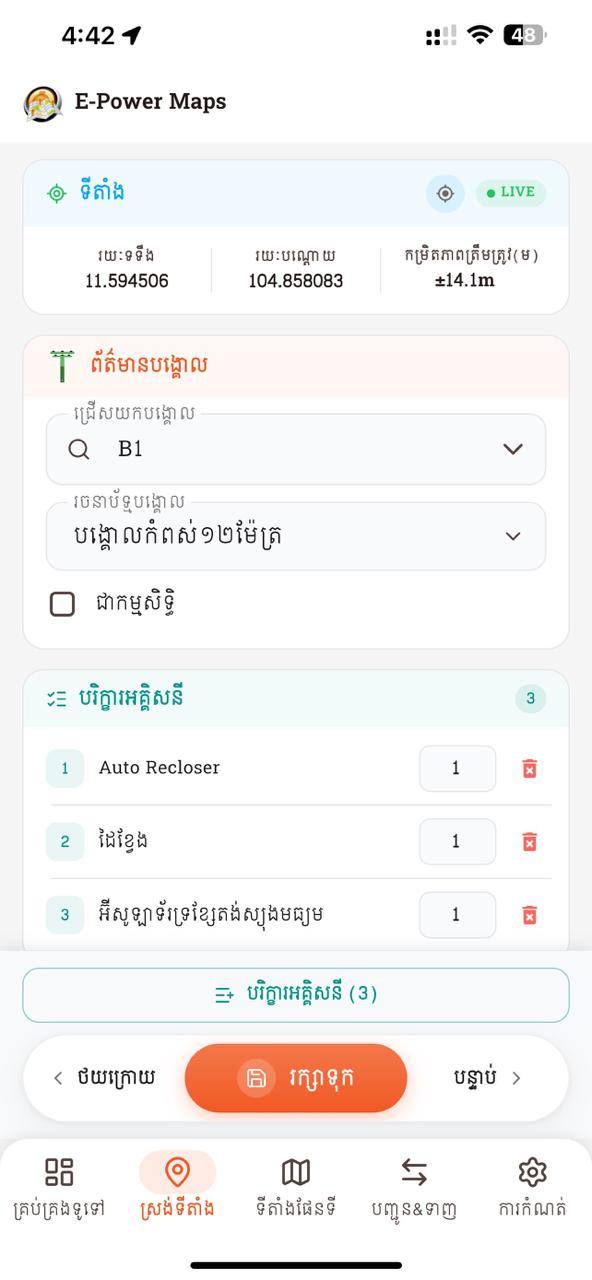
- 1Location card — live latitude / longitude / accuracy. Green LIVE badge while the GPS stream is active; tap the refresh icon to force a re-read.
- 2Pole Information card — search-pick a pole (here:
B1), then pick its style (e.g. បង្គោលកំពស់១២ម៉ែត្រ). Tick "Own" if the pole belongs to E-Power. - 3Accessories card — each row shows index chip + name + qty input + red trash icon to remove. Header pill shows the live count.
- 4Sticky bottom bar — outlined accessory-count button above a Prev / Save (orange pill) / Next row. Save persists locally and posts when online; queues to pending-sync when offline.
- 5Bottom navigation bar — Dashboard / Collect (active) / Maps / Communication / Settings. Tap Maps to launch Google Earth from the latest data.
- Open Collect; list orders by area then pole name.
- Type a partial name → only matching poles appear; "Add New Pole" entry shown.
- Create new pole with duplicate name → rejected with required/duplicate error.
- Capture GPS for a fresh pole → values live-update; accuracy shown.
- Reopen collected pole → live updates stop; stored coords shown in primary color.
- GPS color cue: poor signal shows coords in red and Save is blocked; good signal turns them white and Save is enabled.
- Add one accessory + apply one package → quantities correct; remove = soft-delete.
- Save → record persists, advances to next pole, syncs or queues.
- Toggle offline → save succeeds; go online → record posts automatically.
3. Maps / KMZ Export
The KMZ generator has been rewritten end-to-end: it composes Google Earth output entirely from current PoleStyle / CableStyle catalog data — no more hard-coded blue/red icons. Pole markers are tinted from a single white outline icon, cables come from real TblCablePlace records, and a LOD-swap keeps icons readable from continent zoom down to street level.
- KMZ generated inside the app from collected data using the
archivepackage. - Per-PoleStyle
<Style>blocks:ic_pole_outline.pngis tinted via<IconStyle><color>channel multiplication; scaled byicon_scale. - LOD-swap: two Placemarks per pole (far & near) inside a
<Folder>withcheckHideChildren, swapping at 300 pixels — one entry per pole in the Earth list. - Cables drawn as LineStrings: startPoint → ordered details → endPoint (no Region gating, so long lines don't disappear when midpoint goes off-screen).
- Cable color + width from CableStyle (
LineColor,LineWidth,Diameter). - Transformer placemarks render at the linked Place's coordinates (since
tbl_transformerhas no own coords, onlyplace_id). - Color encoding: SQLite stores AARRGGBB (Flutter
Color.toARGB32);_argbHexToKmlColorswaps R↔B to AABBGGRR for KML. - Online refresh: when reachable,
openGoogleEarth()calls_syncAllDataForMaps()to pull the latest places/transformers/cables before rendering. - Offline fallback: reads cached
tbl_place/tbl_transformer/tbl_cable+tbl_cable_detail. - Bundled assets in KMZ:
ic_pole_outline.png+ fallbackic_pole_blue/red+ transformer icon.
What the KMZ looks like in Google Earth
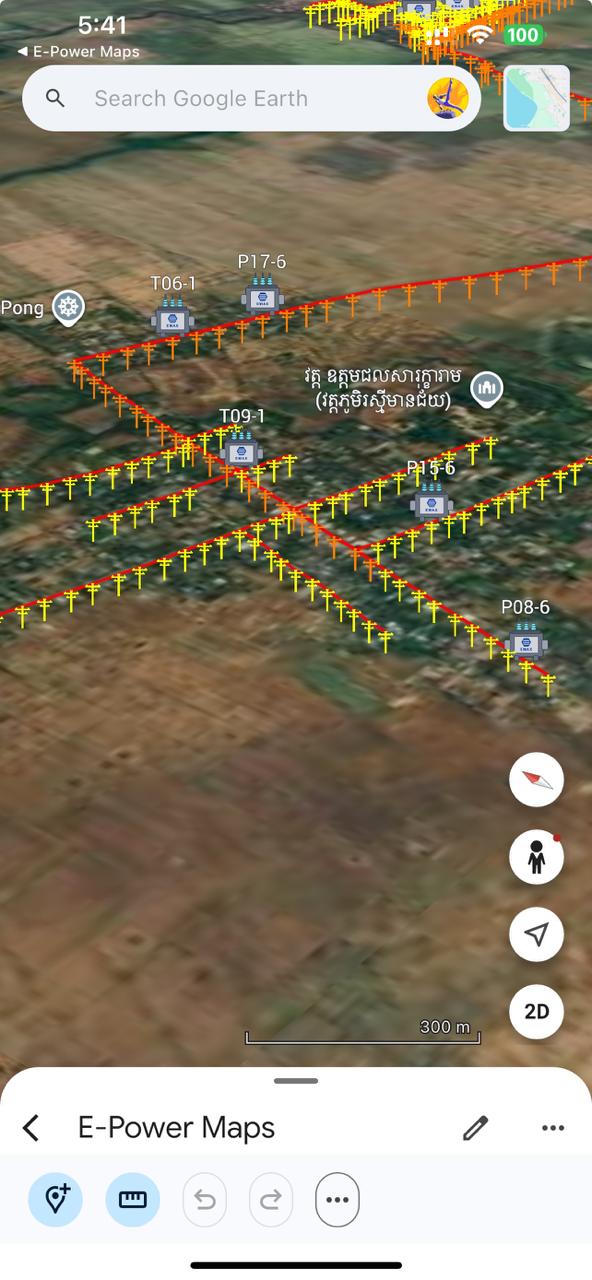
- 1The generated KMZ opens in the Google Earth app via
openGoogleEarth(). Header keeps a tiny "E-Power Maps" back-link. - 2Pole markers tinted from each
PoleStyle.line_color— here the orange/yellow colour comes straight from the chosen Style. Pole code labels (P17-6, P08-6 …) render once per pole thanks to the LOD-swap Folder. - 3Red lines are real cables —
startPoint → ordered Cable details → endPoint. Their colour and width come from CableStyle, not nearest-neighbor inference. - 4Transformer placemarks (T06-1, T09-1 …) render at the host pole's coordinates with a different icon, so they're easy to spot in the field.
- 5Google Earth's native controls (compass, street view, 2D/3D, scale bar) still work — tap a pole to see its full label, or use the search bar to jump to a specific code.
Layer-by-layer KMZ structure
maps.kmz (zip)
├── doc.kml
│   ├── <Style id="poleStyle_<id>">        ← per PoleStyle (tinted ic_pole_outline)
│   ├── <Style id="poleStyleNear_<id>">    ← same icon at ~35 % scale for near zoom
│   ├── <Style id="cableStyle_<id>">       ← per CableStyle (LineColor + LineWidth)
│   ├── <Style id="polePairFolder">        ← ListStyle: checkHideChildren (1 row / pole)
│   ├── <Folder name="Poles">
│   │   └── <Folder> per pole (#polePairFolder)
│   │       ├── <Placemark> far variant — maxLodPixels=300
│   │       └── <Placemark> near variant — minLodPixels=300
│   ├── <Folder name="Cables">
│   │   └── <Placemark> per cable — LineString(start → details[order] → end)
│   └── <Folder name="Transformers">
│       └── <Placemark> per transformer at its place_id's lat/lng
└── icons/
    ├── ic_pole_outline.png    ← single white-fill icon, tinted at render time
    ├── ic_pole_blue.png       ← fallback when no PoleStyle assigned
    ├── ic_pole_red.png        ← fallback for "not collected"
    └── ic_transformer.png
clamp(0.7, farScale) crashes when admin sets iconScale < 0.7 — code uses plain if-conditionals instead. (b) Near scale floor is 0.7 except when farScale is already smaller. (c) PoleStyles with unset iconScale render at 0× until a value is saved — defaults to 2.5 only when value is 0 or absent.
- Generated KMZ opens correctly in Google Earth / Pro.
- Coordinates on map match those captured in Collect.
- Each pole rendered in its PoleStyle color + scale.
- Zoom in from country level → icons shrink at ~300 px boundary; zoom further to street → labels appear.
- Pole list (left panel in Earth) shows one row per pole — no duplicate near/far entries.
- Cable lines follow real
start → details (ordered) → endpath; long cables stay visible when midpoint is off-screen. - Cable color + width reflect their CableStyle.
- Transformers appear at the host pole's location with name label.
- Re-open Maps while online → newly collected places appear; offline → cached snapshot still opens.
4. Communicate
The biggest architectural change: USB/TCP socket has been replaced with a REST API, and offline + auto-sync are first-class.
- HTTPS REST API via Dio. Base URL overridable via Developer Mode.
- Export to server:
POST /Sync?type=import— bulk JSON payload (style, accessory, package, packageDetail, place, placeDetail, transformer).is_newflag drives server INSERT vs UPDATE. - Import from server:
POST /Sync?type=export→_importServerData()wipes + reinserts each catalog table; pending-sync queue cleared (server is now authoritative). - DistributionMethod auto-refresh:
importFromServer()also calls/Lookup/Distributionsand replacestbl_distribution_methodso the LineStyle picker stays offline-usable. - Per-entity REST writes during Collect/Admin:
/Accessory,/Place,/Place/Collect,/Pole,/Style,/CableStyle,/TransformerStyle,/Cable,/Transformer,/Package. HeaderApp-Id= tenant. - Pending-sync queue (
tbl_pending_sync) + auto-sync viaConnectivityService. Triggers: connectivity restore, 3-min periodic, app resume. - Connectivity treats any non-
noneresult as online (wifi/mobile/ethernet/vpn/other) — previously VPN was misread as offline. - SyncBloc phases:
idle → exporting → importing → completed | failed. - Every attempt logged to
tbl_sync_historywith type/item-count/status/error. - Maps export piggy-backs:
openGoogleEarth()runs a silent sync first when online so the KMZ reflects fresh server state.
The Communication screen
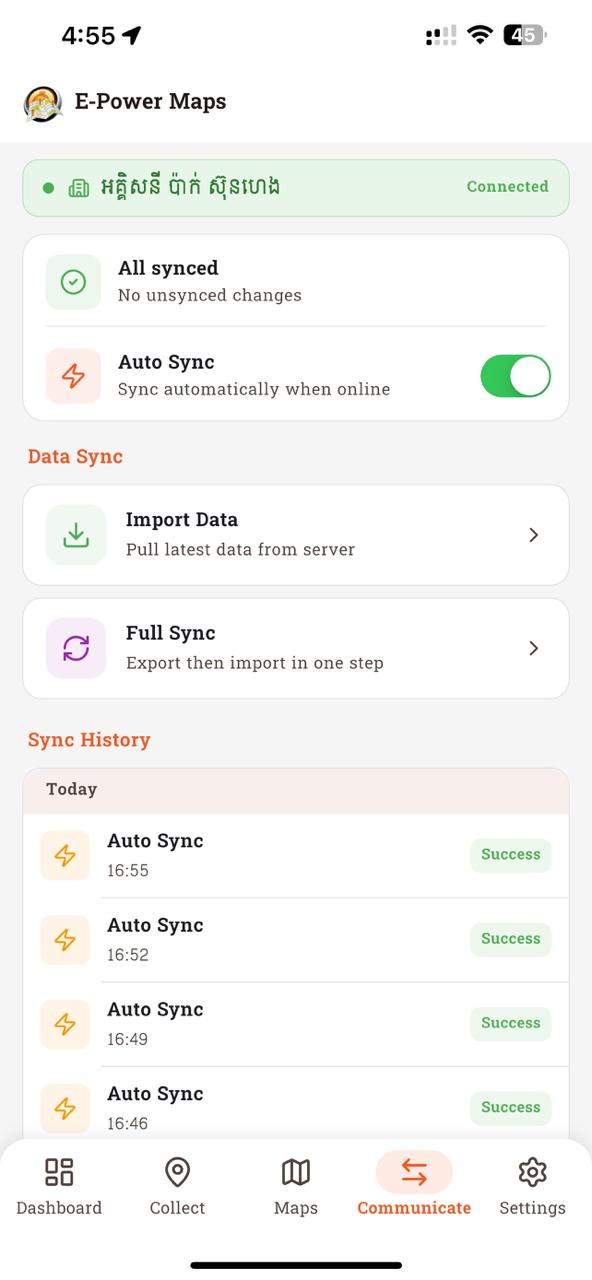
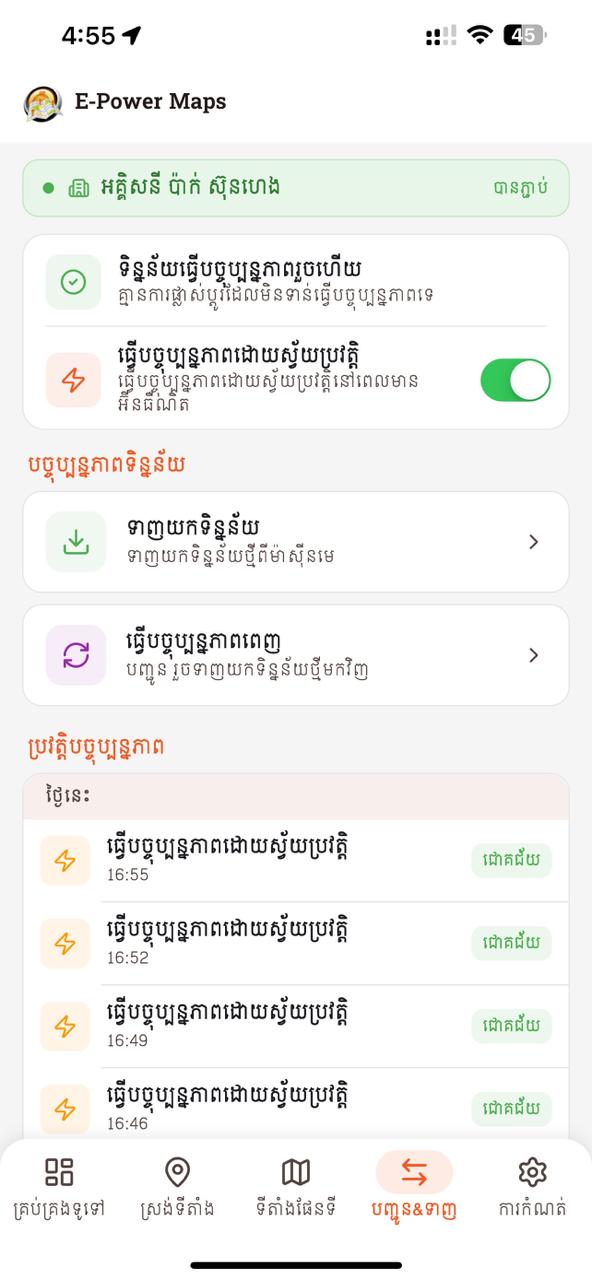
- 1Tenant chip — green when an organisation is registered and reachable (e.g. អត្តសញ្ញាប័ណ្ណ ស៊ីនហេង · Connected). If empty, prompts you to register one.
- 2Sync status card — shows "All synced" (no pending) or "n pending changes" with a Sync button. The Auto Sync toggle controls whether the app uploads automatically when connectivity returns.
- 3Data Sync — two action tiles: Import Data (pull latest catalog from server, also refreshes Distribution Methods) and Full Sync (export then import in one run).
- 4Sync History — grouped by date (Today / Yesterday / earlier). Each row shows the sync type ("Auto Sync" / "Full Sync" / "Import"), the time, and a green Success / red Failed pill.
- 5Bottom navigation bar — Communicate tab active (orange pill background). Tap any tab to switch instantly.
- Full Sync → pulls latest catalogs; posts unsynced collections.
- Import-only run → catalogs refresh, in-progress collections untouched.
- Offline create → Pending queue; online → auto-sync, Sync History shows success.
- Force 4xx/5xx → Sync History captures error; queue keeps item for retry.
- KMZ export produces a valid file that opens in Google Earth.
5. Accessories
- Full CRUD with pagination, search, selection mode.
- Add enabled — writes hit
/Accessoryendpoint when online. - Offline creates queue to
tbl_pending_sync; auto-flush on reconnect. - Same soft-delete semantics (
is_active).
The Accessories screen
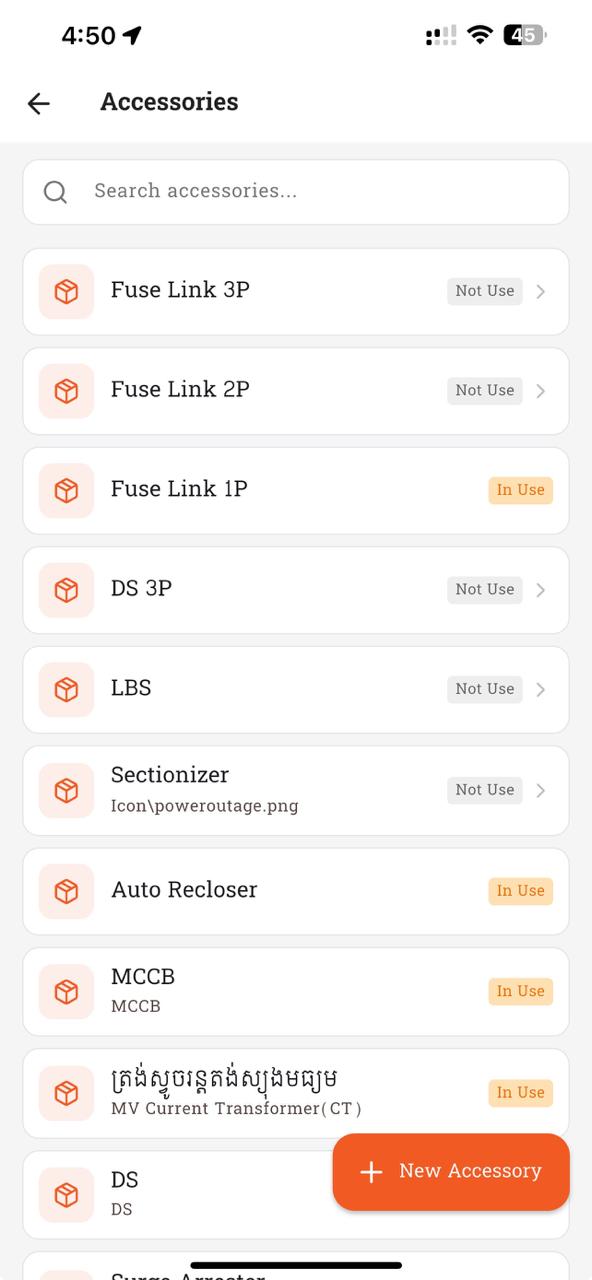
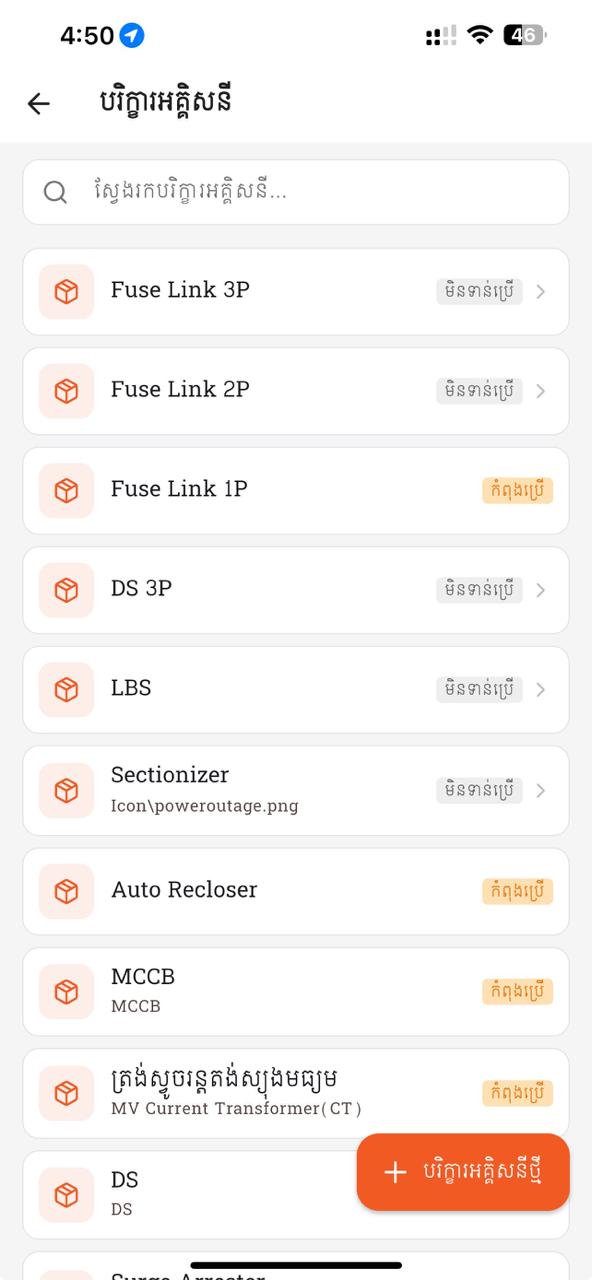
- 1Search box at the top — type to filter accessories by name (e.g.
Fuse,MCCB,Auto Recloser). - 2Each row shows the accessory icon, name, optional sub-label (image path or code), and a status pill: gray "Not Use" or orange "In Use". The pill comes from the server — an accessory is "In Use" when at least one active Place or Package references it.
- 3Tap any row to open the detail page (edit name / note, soft-delete). Long-press to enter selection mode for batch actions.
- 4Orange "+ New Accessory" floating button at bottom-right opens a sheet to create one. Saves go straight to
/Accessorywhen online, or queue offline.
Add / edit an Accessory
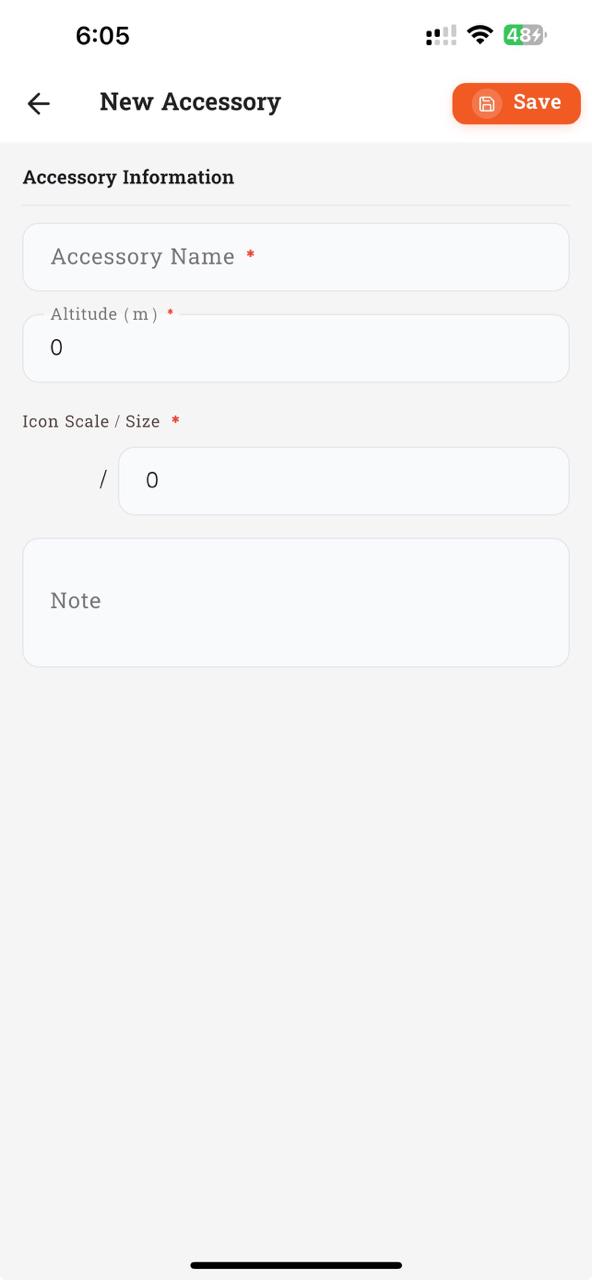
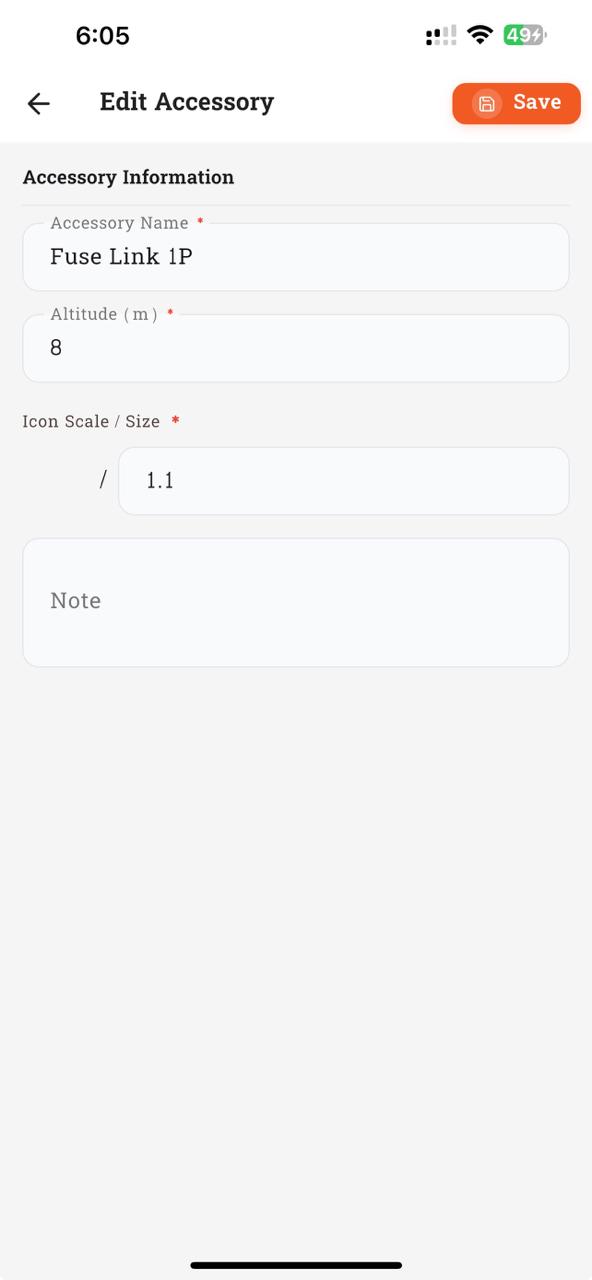
Tapping + New Accessory opens the New Accessory form (left). Tapping an existing row opens Edit Accessory (right) pre-filled with current values. Required fields are marked with a red *: Accessory Name, Altitude (m), and Icon Scale / Size. Tap the orange Save button at top-right to commit; it posts to /Accessory when online or queues for later when offline. The layout is identical in Khmer — only the labels translate.
- Create a new accessory → appears in list, posted to API, visible on web.
- Edit existing → name/note changes persist; round-trip to server.
- Soft-delete → hidden from list but retained in DB (
is_active = 0). - Offline create → queued; online → queued item syncs.
6. Packages
- Same name + accessory rows + quantity model.
- Same cascade semantics via
PackageRepository. - Applying a package in Collect adds all PackageDetail rows as PlaceDetail (skipping duplicates).
The Packages screen
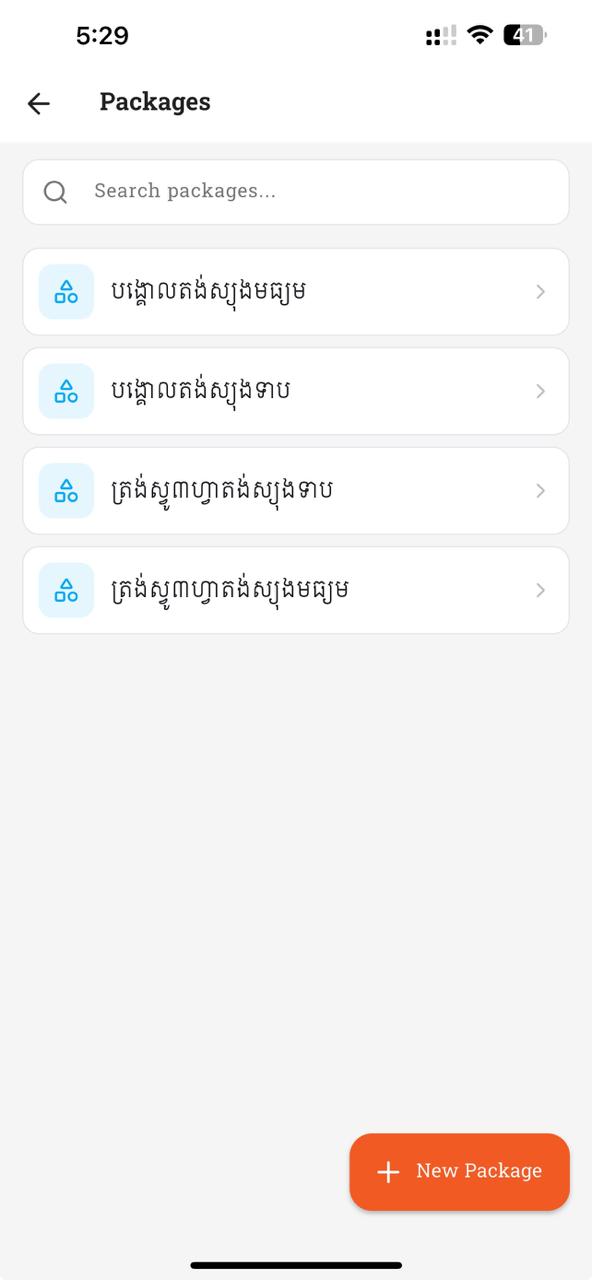
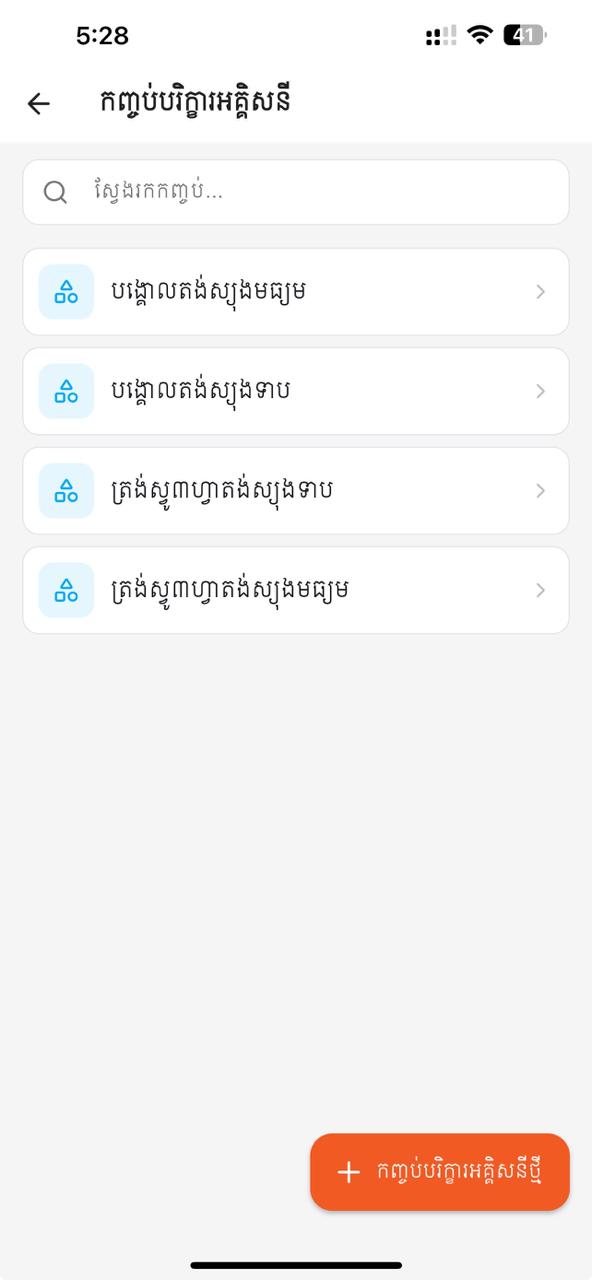
Each row is a saved bundle (e.g. បង្គោលតង់ស្យូងមធ្យម). Tap a row to view + edit its accessory lines and quantities; tap the orange "+ New Package" floating button to create one. Search by name at the top.
Add / edit a Package
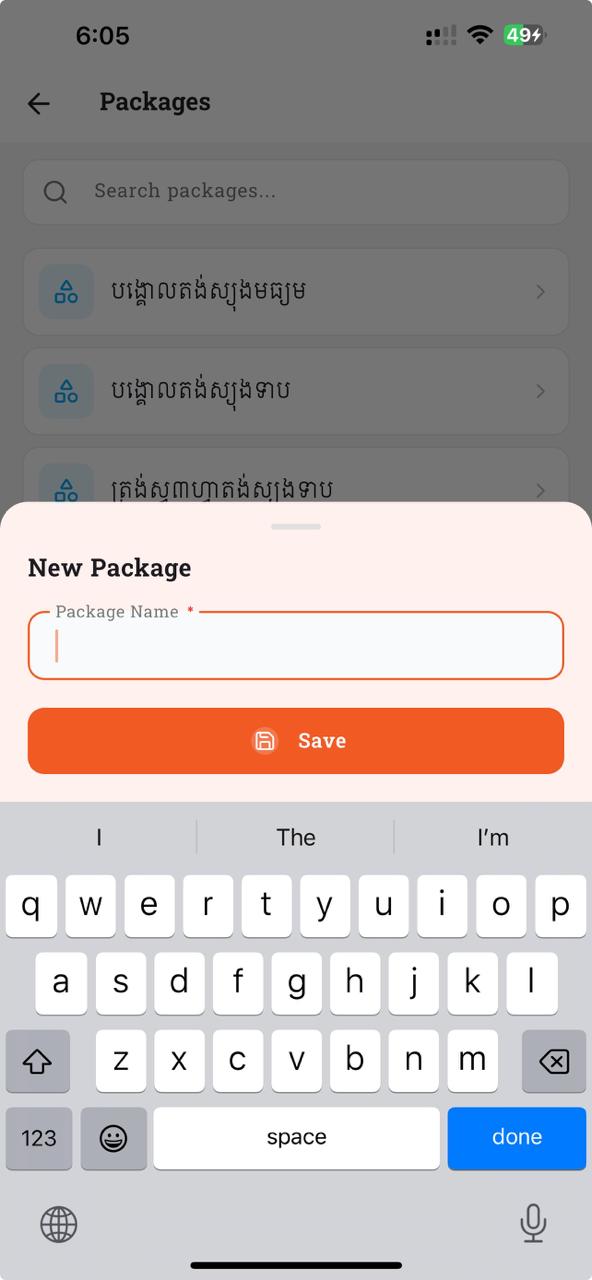
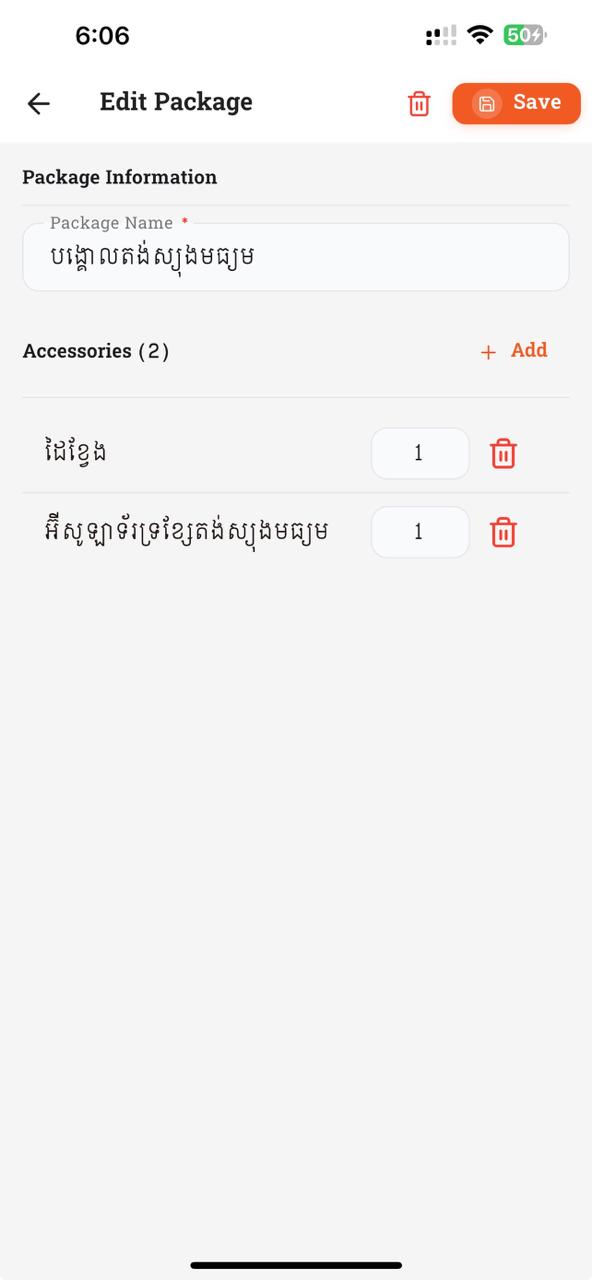
Tapping + New Package opens a quick bottom sheet (left) where you enter just the package name and Save. The package is created empty, then a full Edit Package page (right) lets you add accessories with + Add, edit quantities inline, and remove lines via the red trash icon. The trash icon next to Save (top-right of Edit) hard-deletes the entire package.
- Create package with 3 accessories + quantities → Collect apply adds same 3 PlaceDetail rows.
- Edit: add one, remove one, change qty → next apply reflects changes.
7. Poles
- Same ordering rule.
- Same uppercase + duplicate-name enforcement.
- Distinct-area picker presented as a sheet.
The Poles roster screen
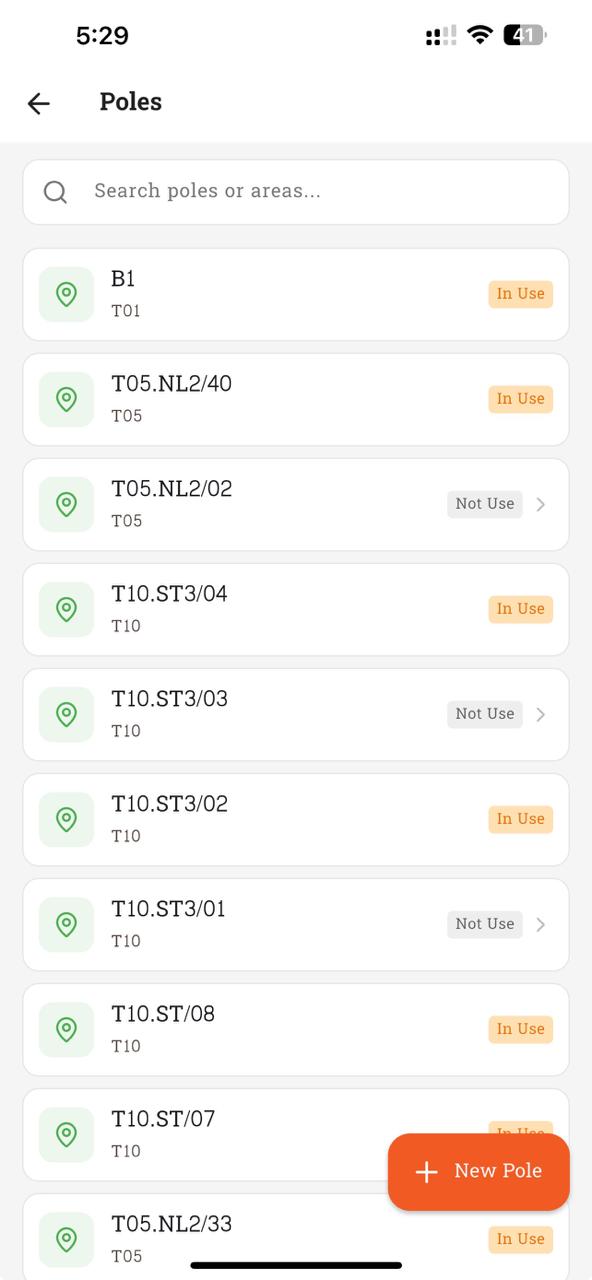
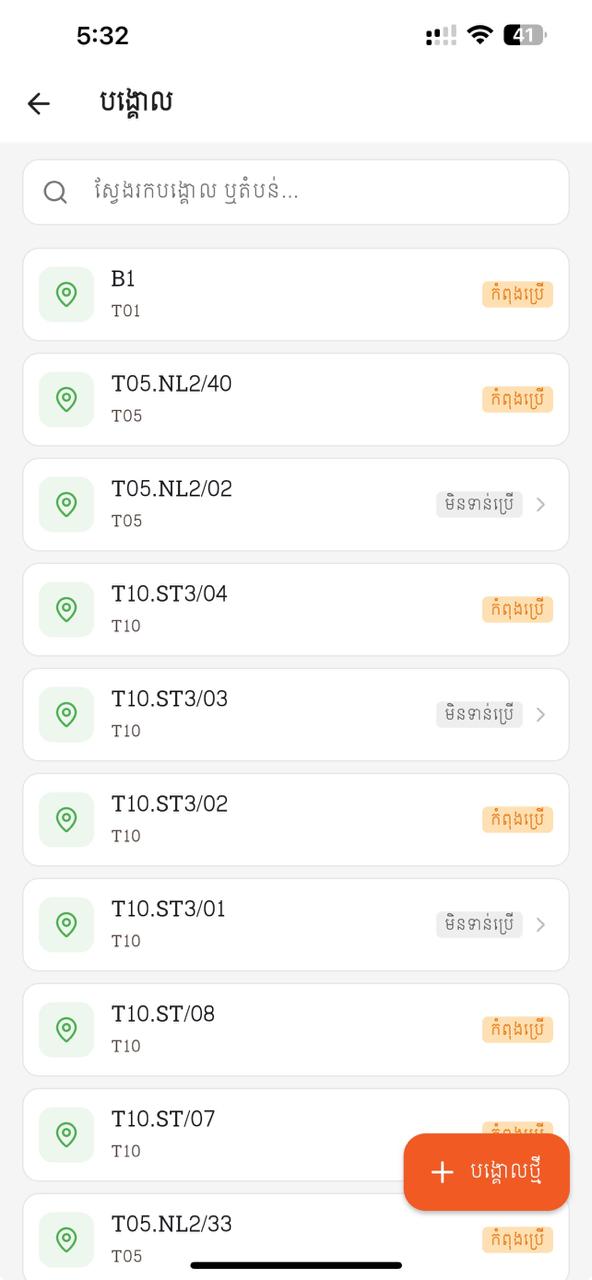
The pole master list — every row is a unique pole code (e.g. B1, T05.NL2/40) with its area chip below. The "In Use" pill means at least one active Place / transformer / box / customer-meter references that pole; "Not Use" poles can be edited or removed safely. Search by pole code or area at the top; "+ New Pole" creates one.
- New place with lowercase input → saved as UPPERCASE.
- Duplicate pole name → rejected with same-name error.
- Area picker suggests existing distinct areas.
8. Styles
- Full CRUD enabled.
- is_active added → supports soft-delete for styles as well.
- PoleStyle controls KMZ output:
line_color(AARRGGBB),line_width,icon_scale,altitude,label_color,label_scale,label_opacity. Re-labelled in UI to "Pole Color / Size" (line_color/widthcontrol the pole MARKER, not the cable line). - Save validation: only
name,altitude,line_color, andline_widthare required.
The Styles screen
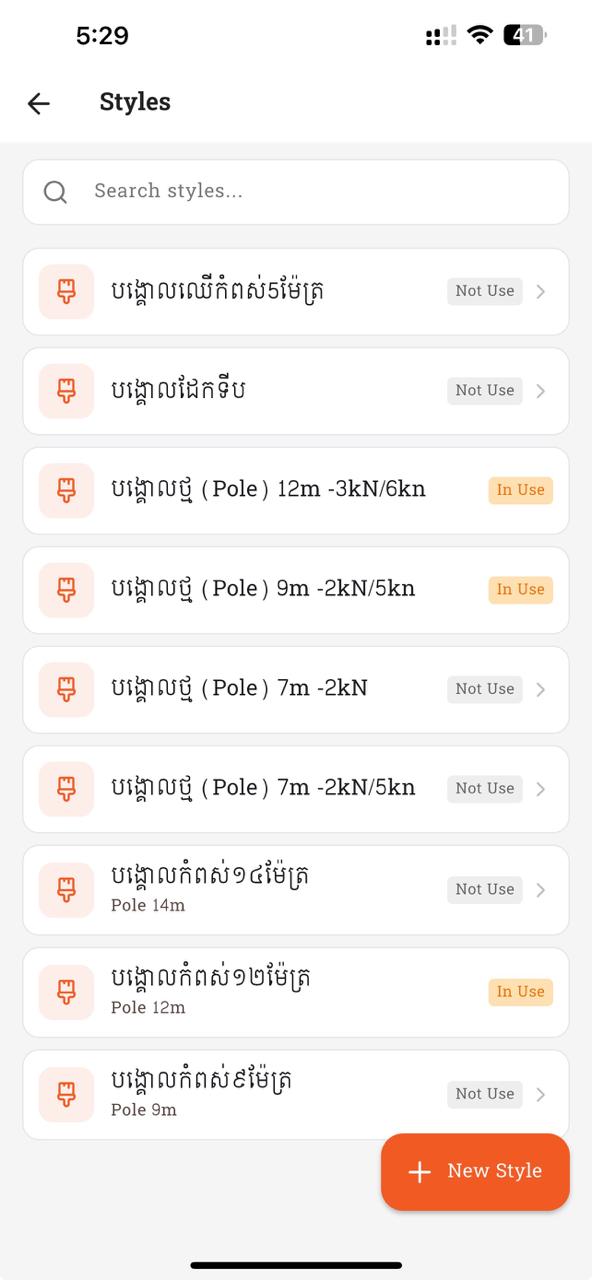
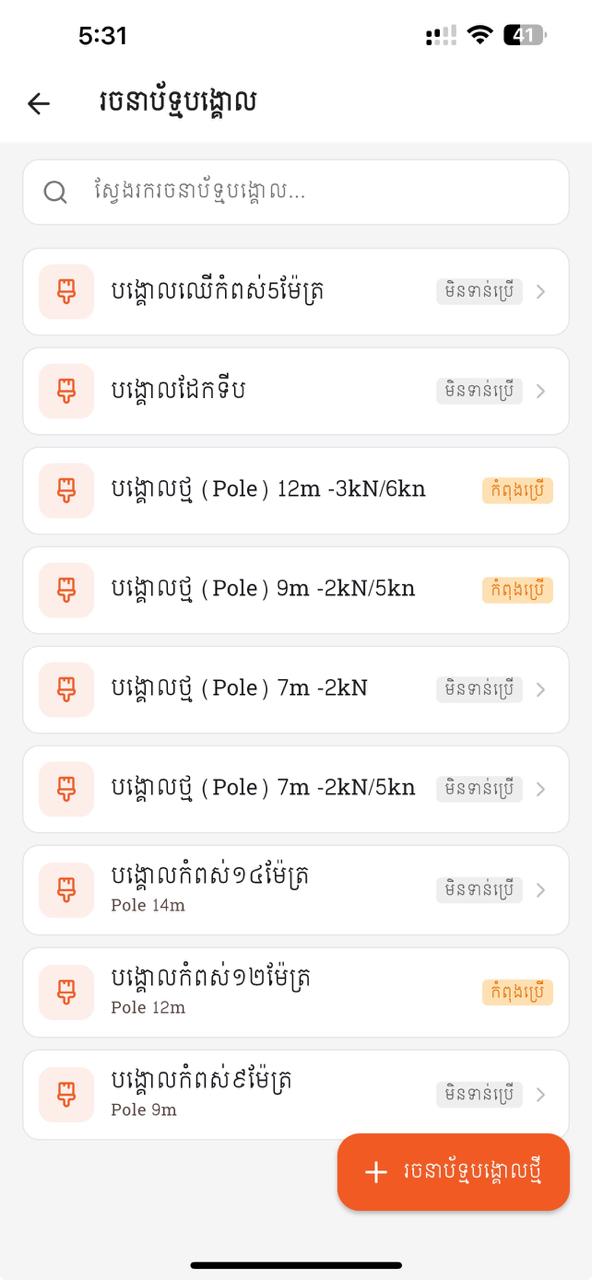
Defines how each pole renders on the KMZ map — name + line color (the pole marker tint) + width + altitude. "In Use" rows are already attached to one or more collected Places; "+ New Style" creates a new style for future collections.
Add / edit a Style + color picker
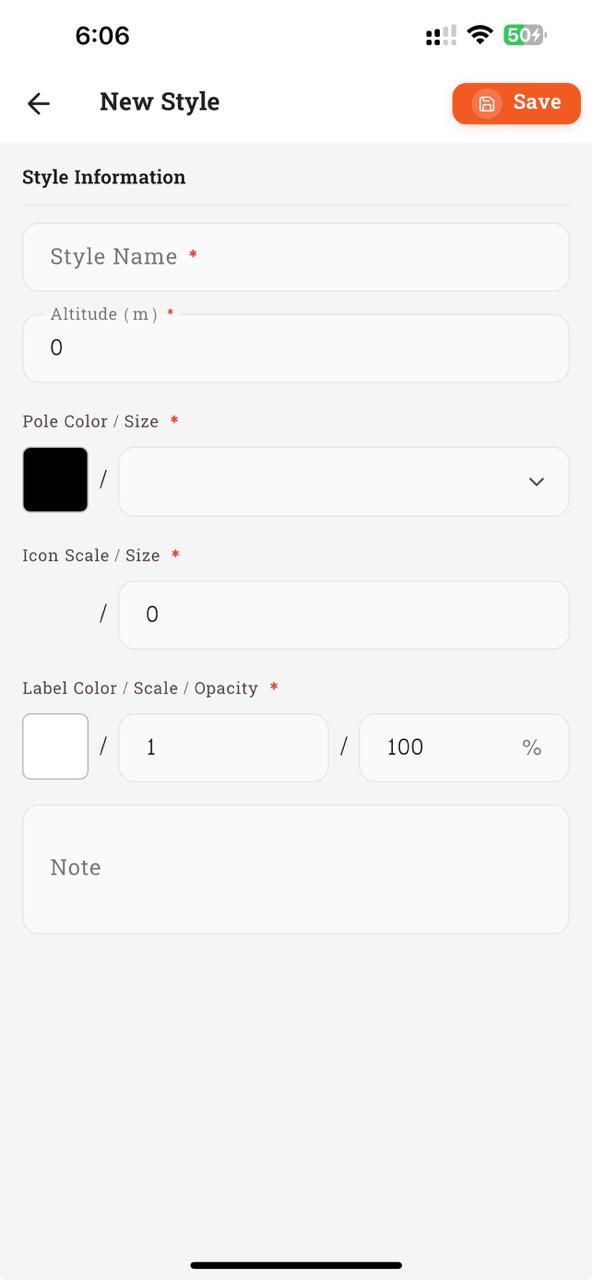
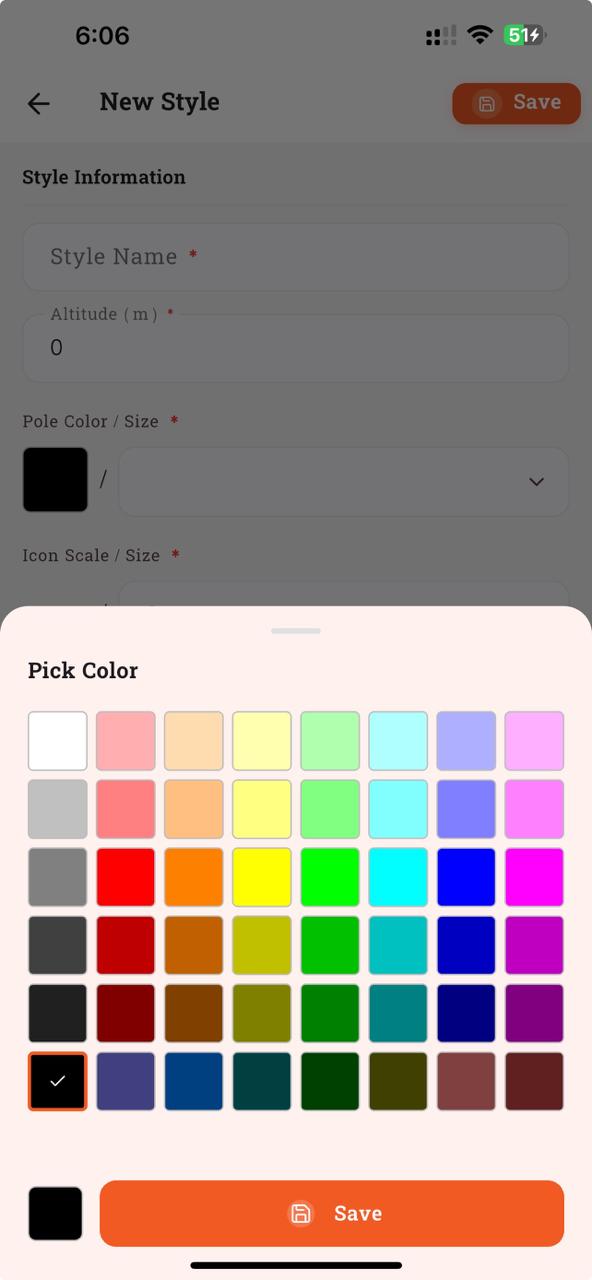
New Style (left) collects the fields that drive how the pole renders in KMZ: Style Name, Altitude (m), Pole Color / Size (the marker tint + width), Icon Scale / Size, and Label Color / Scale / Opacity. Required fields are starred. Tapping any color swatch opens the Pick Color bottom sheet (right) with 48 preset swatches — the currently selected one has an orange outline + check. The matching field on the form updates as soon as you pick.
- Create / edit / delete style; server reflects the change.
- Edit a style → save → POST/PUT actually fires (verify with network log).
- Change Pole Color → KMZ pole markers in Google Earth reflect the new color.
- Change
icon_scale→ marker visibly larger/smaller at the same zoom.
9. Transformers
- Full CRUD enabled.
- Pole association (
place_id) preserved.
The Transformers screen
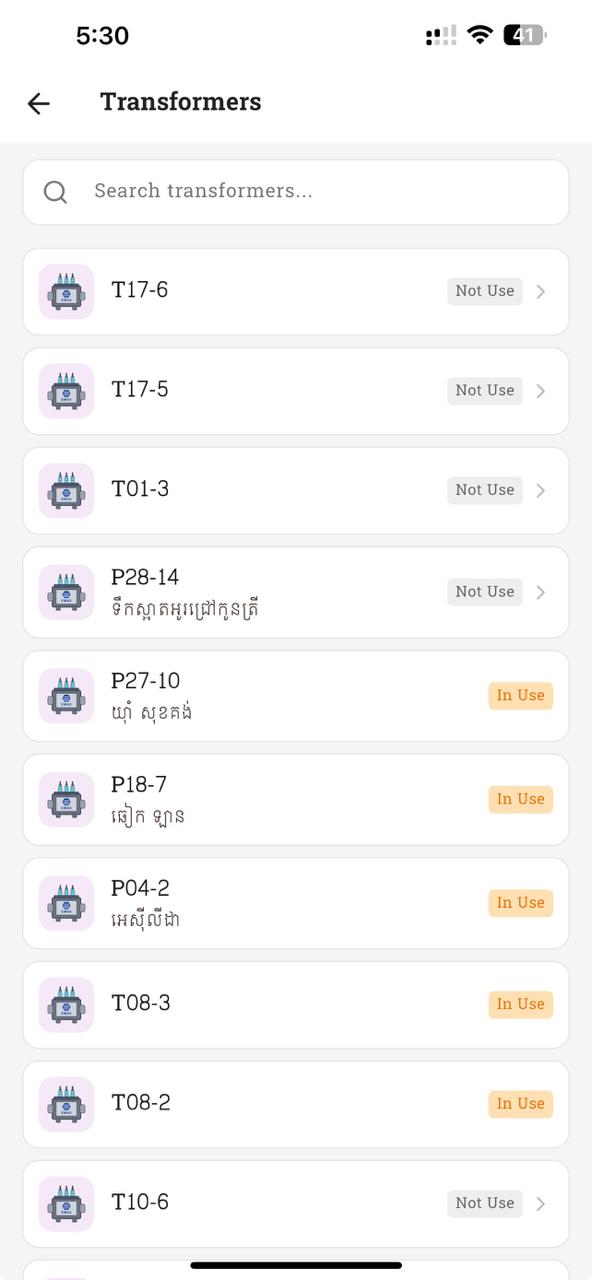
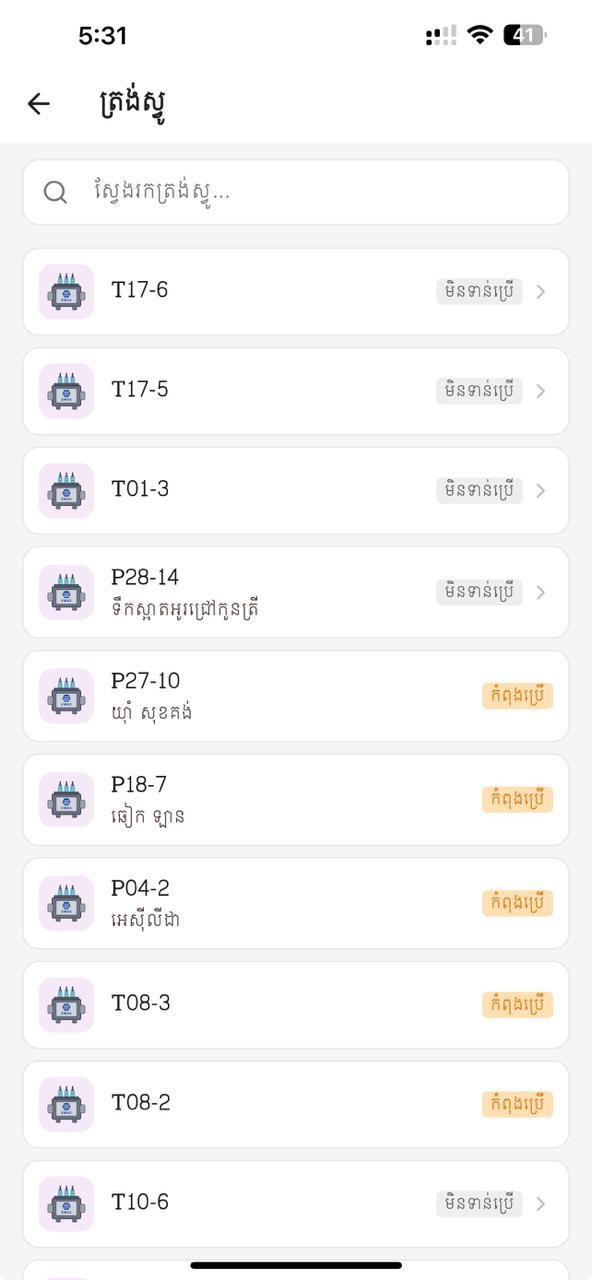
Every transformer with its code (e.g. T17-6, P27-10) and optional sub-label (location / owner). "In Use" = currently attached to at least one active pole; "Not Use" rows can be edited or deleted. Tap any row to open its detail page (brand, capacity, phase, position, dates).
- Create transformer linked to a pole; pole association persisted.
- Edit / delete transformer; server reflects change.
10. Line Styles ➕
Catalog vertical added so admins can define cable appearance (color, width, diameter) and electrical attributes (distribution method, shielded, underground). Backend names this entity CableStyle; the mobile UI keeps the user-facing "Line Style" wording, with only the wire contract using the backend name.
- Routes:
/admin/line-styles(list) +/admin/line-styles/:id(detail). - Form fields:
styleName,lineColor(AARRGGBB picker),lineWidth(sheet picker 0.5/1/1.5/2/2.5/3),diameter,altitude,distributionId(DistributionMethod picker — REQUIRED *),isUnderground,isShielded. - DistributionMethod picker is backed by
tbl_distribution_method(three-layer cache, see 3.18). - REST:
/CableStyle(GET list/byId, POST add, PUT update, DELETE list). HeaderApp-Id= tenant. - Backend marks
IsInused = ANY TblCablePlace.StyleId. Delete rejected when in-use. - DB-side:
tbl_line_style(dbVersion 17) — id, name, line_color, line_width, diameter, altitude, distribution_id, is_underground, is_shielded, is_active, is_new. - Drives KMZ cable rendering:
cableStyle_<id>Style block (LineColor + LineWidth) applied to each cable LineString. - Backend orders DESC; mobile list shows IsInused chip on each row.
The Line Styles screen
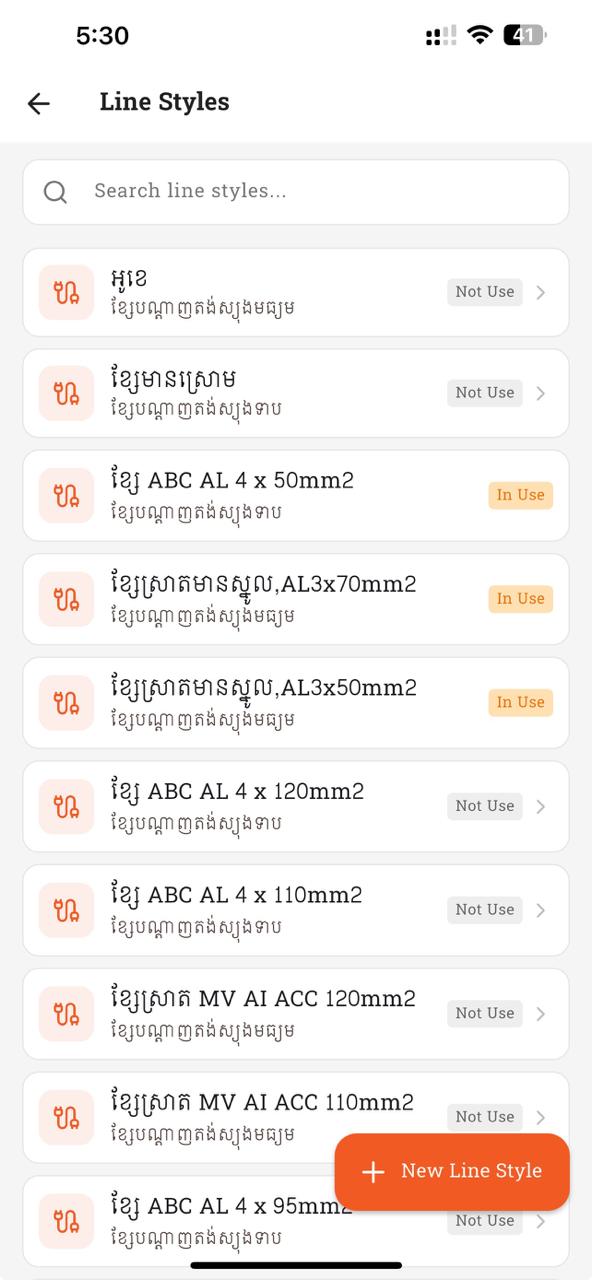
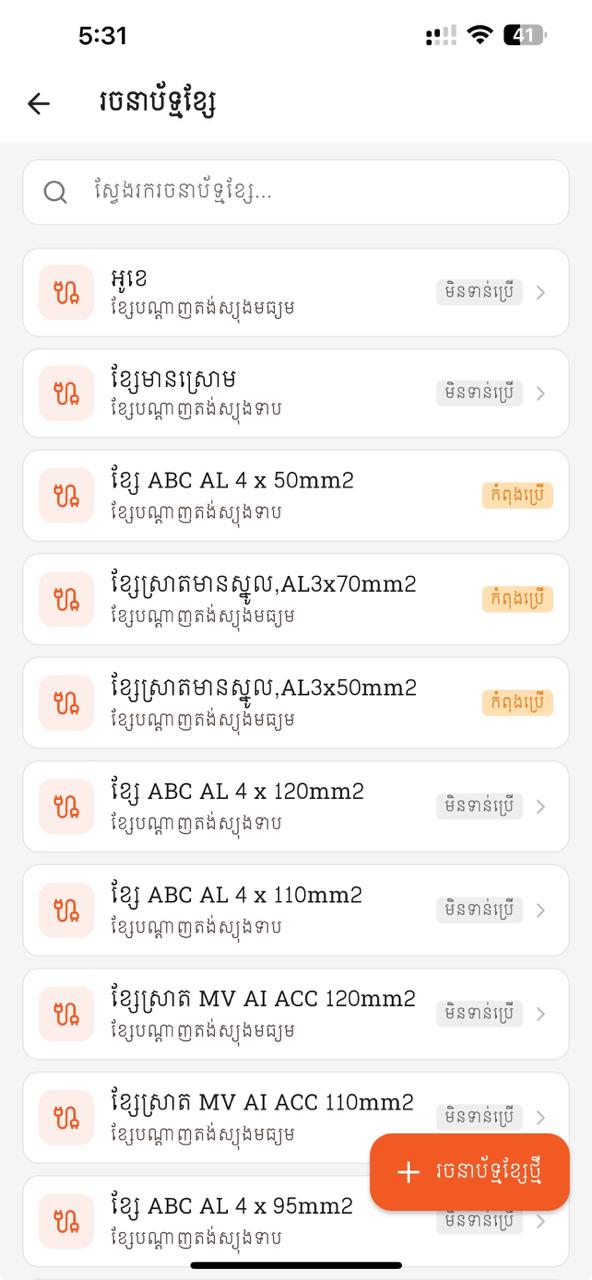
Cable / line styles drive the colour and thickness of the cable LineStrings in the KMZ. Each row shows the style name (e.g. ខ្សែ ABC AL 4 x 50mm2) plus the line characteristic underneath. "In Use" means at least one cable references it; you can't hard-delete an in-use style.
Add / edit a Line Style
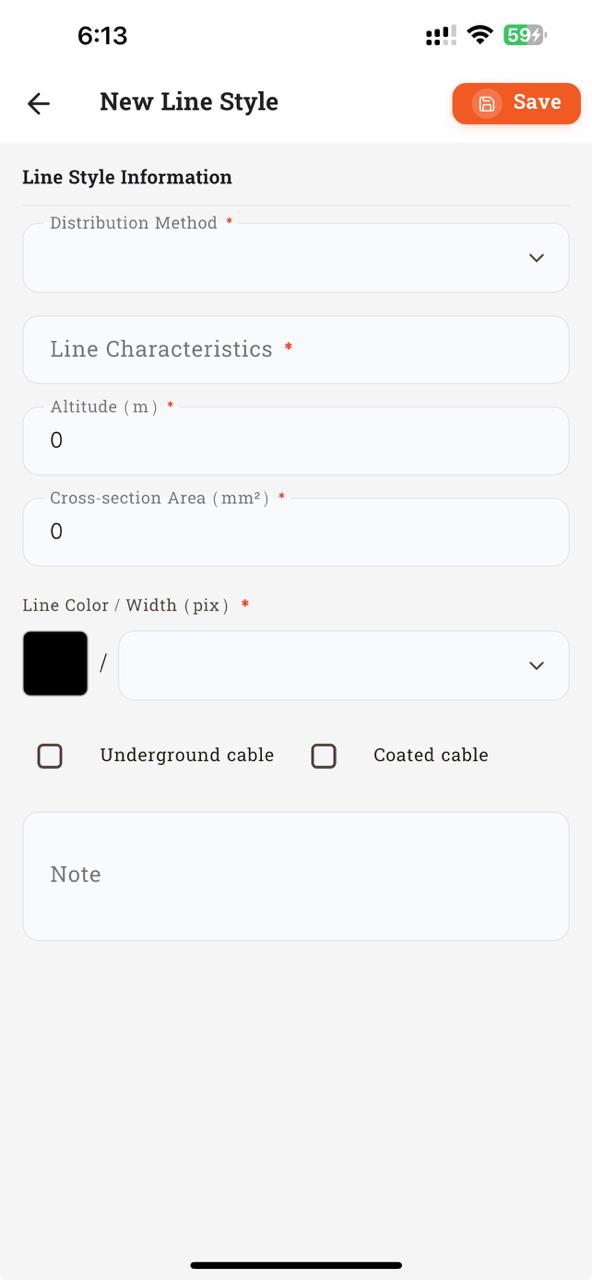
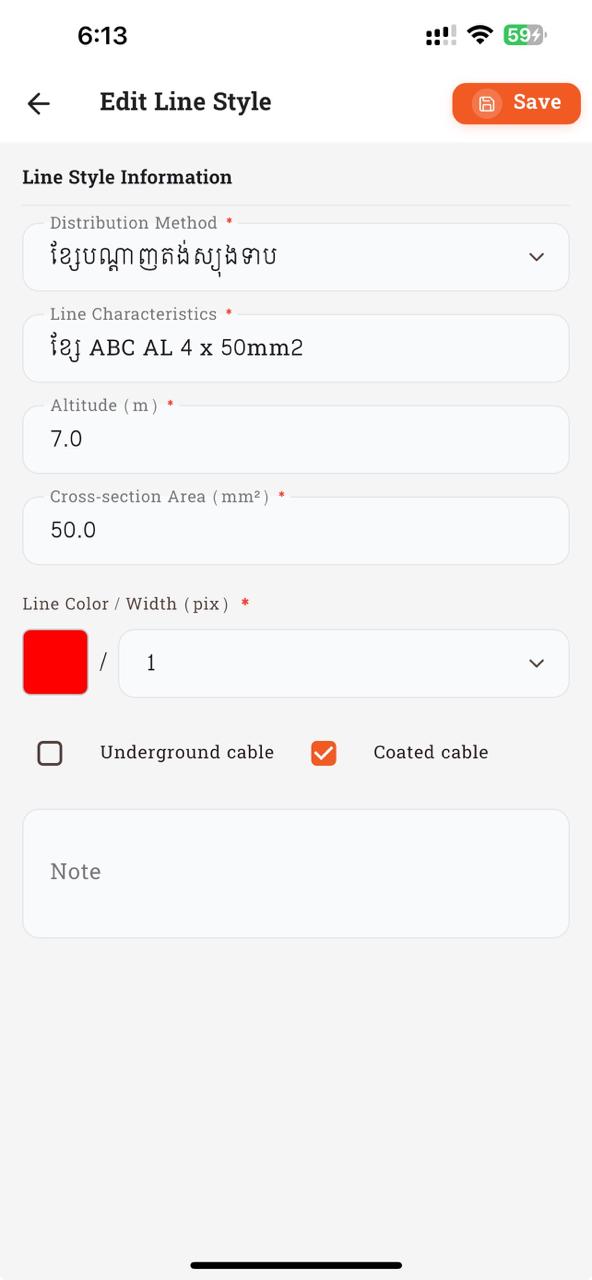
New Line Style (left) captures everything the KMZ needs to draw a cable: Distribution Method (picked from the Distribution Method list), Line Characteristics (free-text label e.g. ខ្សែ ABC AL 4 x 50mm2), Altitude (m), Cross-section Area (mm²), Line Color / Width (pix) (the swatch opens the same Pick Color sheet shown in §8), and two cable flags — Underground cable and Coated cable. Edit Line Style (right) shows a populated record (red colour, width 1, 50 mm², Coated cable ticked). All starred fields are required; Save posts to /CableStyle.
- Create a Line Style → list shows new entry; KMZ cable lines using it render with the chosen color/width.
- Distribution-method field shows red
*and rejects save when empty. - Mark IsShielded → persisted; verify on server side.
- Delete a cable style currently referenced by a cable → server rejects with in-use error; mobile shows snackbar.
- Admin overview tile shows Line Styles count from
/Dashboard.
11. Transformer Styles ➕
Catalog vertical for transformer marker styling (icon, label color, scale, opacity). Mirrors PoleStyle but for transformers. Backend route /TransformerStyle. Currently IsInused is hard-coded false server-side — TblTransformer has no StyleId FK yet.
- Routes:
/admin/transformer-styles+/admin/transformer-styles/:id. - Form fields:
styleName,iconHref,iconScale,altitude,labelColor,labelScale,labelOpacity. No "In link" / image upload column (mobile cannot upload icons). - REST:
/TransformerStyle. Backend orders DESC.IsInusedhard-coded false (FK pending). - DB-side:
tbl_transformer_style(dbVersion 18). - Admin tile + count + Lucide icon.
The Transformer Styles screen
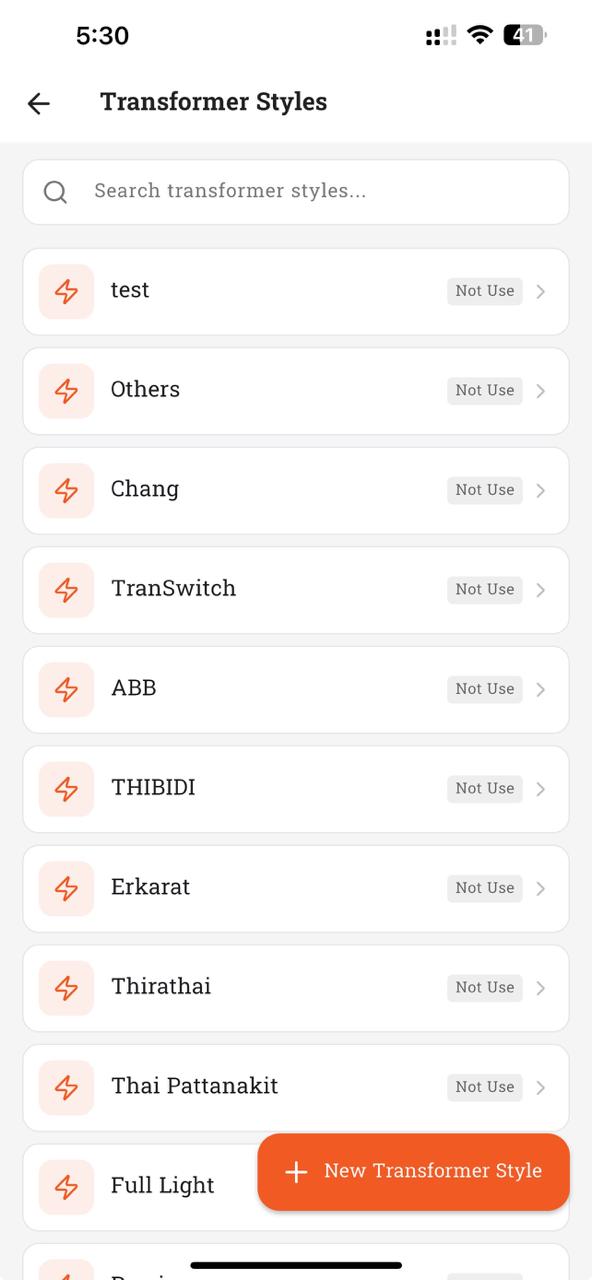
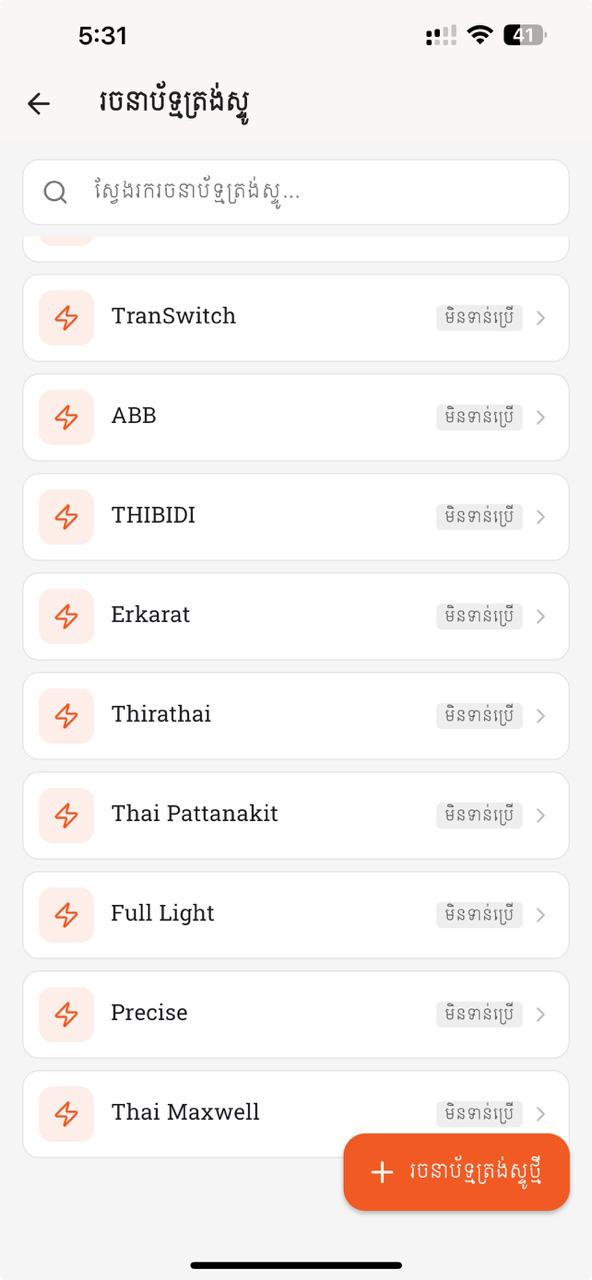
Catalog of transformer brand styles (test, Others, Chang, TranSwitch, ABB, THIBIDI, Erkarat, Thirathai, Thai Pattanakit, Full Light, Precise, Thai Maxwell, …). Each style stores an icon + label colour / scale for KMZ rendering. IsInused is hard-coded false server-side until a TblTransformer.StyleId FK is added.
Add / edit a Transformer Style
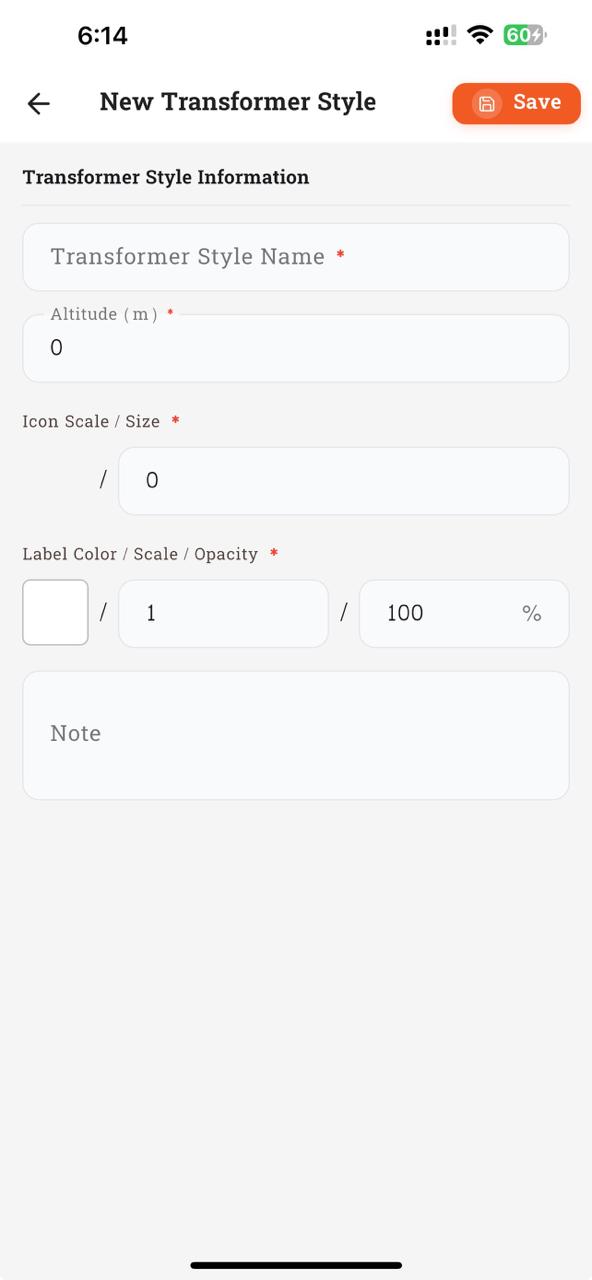
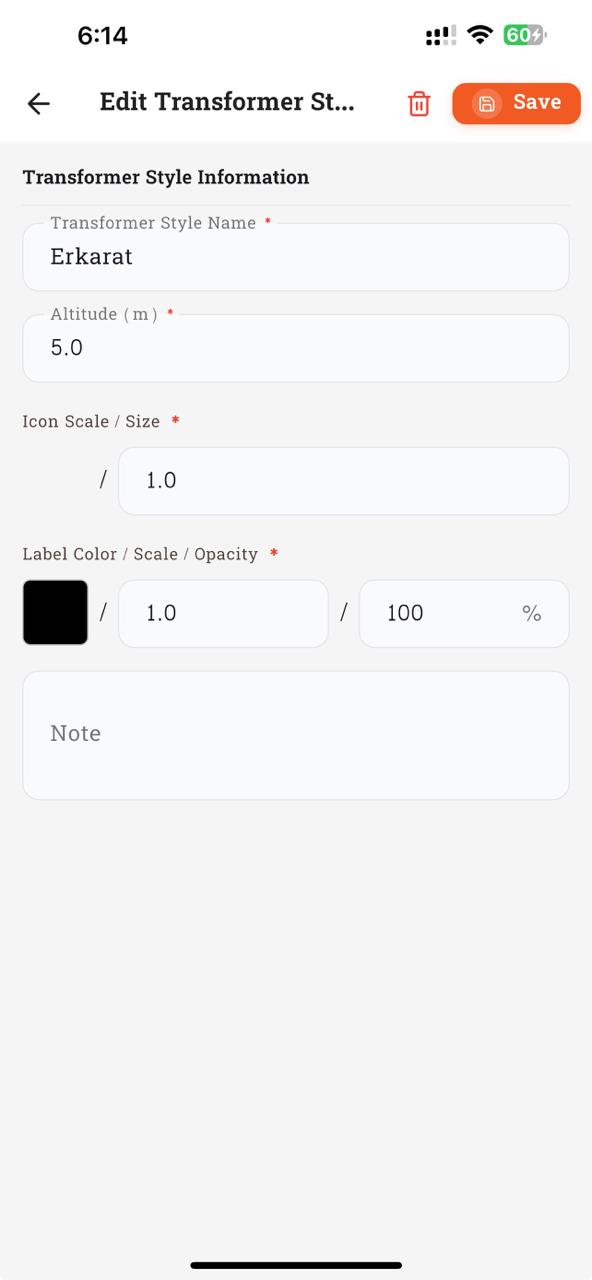
Transformer Style mirrors Pole Style but without a line color/width (transformers are placemarks, not lines). Fields: Transformer Style Name, Altitude (m), Icon Scale / Size, and Label Color / Scale / Opacity. New (left) starts blank; Edit (right) shows a populated record (Erkarat, Altitude 5.0, Icon Scale 1.0, black label, 1.0 scale, 100 % opacity). The trash icon in the Edit header is hard-delete — only allowed when no transformer references this style.
- Admin menu → Transformer Styles → list opens (no 404).
- Create / edit / delete; counts in Admin overview update.
- Save with default values succeeds — no "required field" false-negative.
12. Cable + Details ➕
A new read-side catalog so the KMZ generator draws cable lines from real, ordered records instead of inferring connectivity via nearest-neighbor. Each cable has a start place, end place, and ordered intermediate stops (details). The mobile keeps no dedicated CRUD UI — admins create these from the desktop / web; mobile only caches them for offline KMZ generation.
- REST:
GET /Cable(list with details inlined),GET /Cable/{id}, POST/PUT/DELETE. - Backend single-query detail hydration via
GroupByonTblCablePlaces→ no N+1; details ordered byorder_id. - DB-side:
tbl_cable+tbl_cable_detail(dbVersion 19). - Mobile sync strategy: wipe + reinsert on each refresh (cable count is small; diff would be more code than value).
- Consumed by
lib/core/utils/maps_launcher.dartto walkstart → details[order_id] → endand emit one KMZLineStringper cable. - Each cable references a CableStyle (3.15) which supplies its color/width in KMZ.
- Server has a cable with 3 ordered details A → B → C → D → KMZ draws 3 segments in that order.
- No nearest-neighbor lines appear when an admin pole has no real cable record.
- Offline KMZ uses cached
tbl_cable; cable lines still render.
13. Companies ➕
- Register via QR scan (
mobile_scanner); list persisted in SharedPreferences. - Per-tenant SQLite file:
MobileDB_<tenantId>.db. - Switching re-opens DB and updates
App-Idheader on all future requests. - All blocs reload after tenant switch; rename / remove supported.
The Manage Companies screen
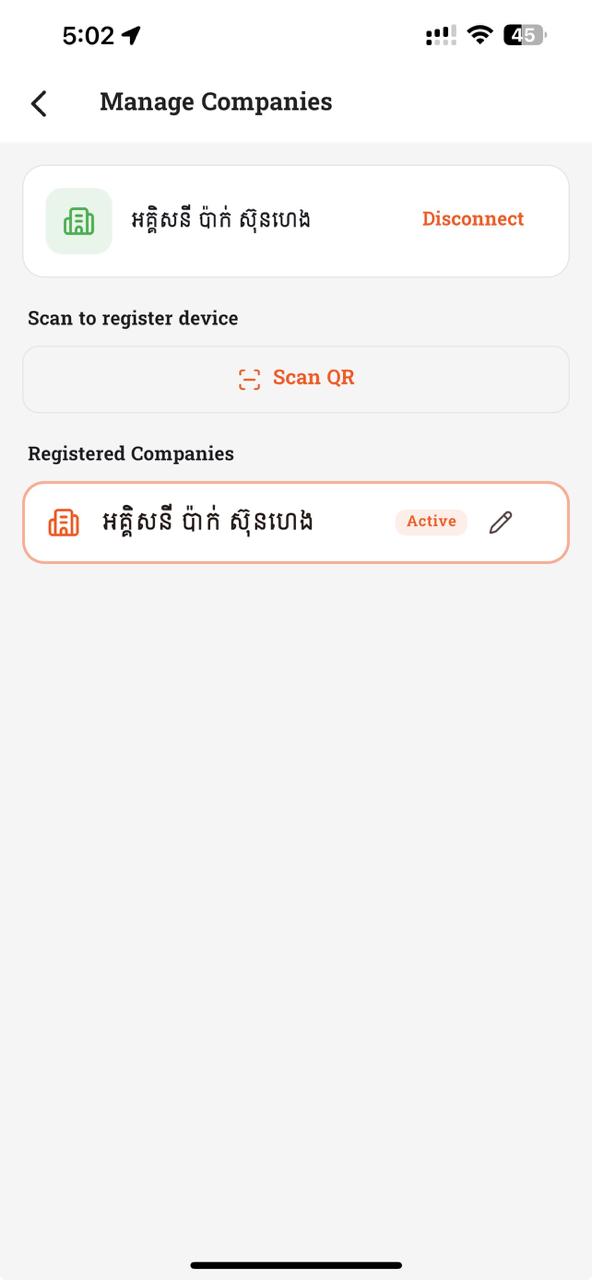
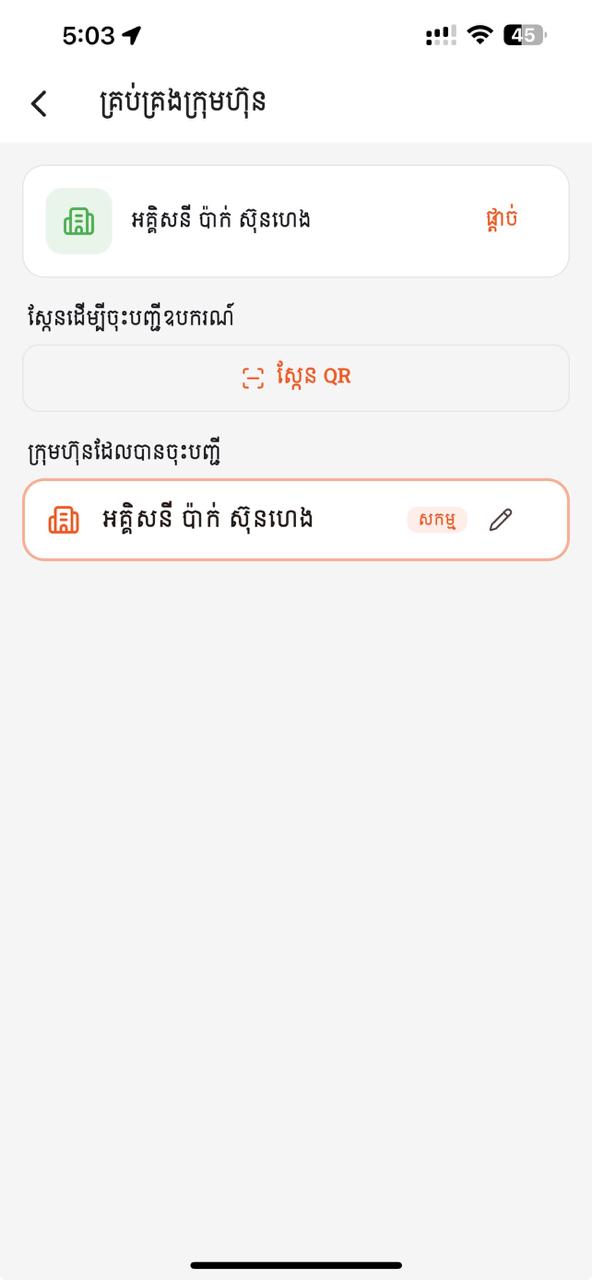
- 1Current company card — shows the connected organisation. Tap Disconnect to sign out from this tenant; the app then prompts you to register another.
- 2Scan to register device — opens the camera and reads the tenant QR code. Each scan creates a new
App-Idbinding so the device can talk to that organisation's server. - 3Registered Companies — list of every organisation this device has joined. The currently active one is outlined in orange and shows the Active pill plus an edit (pencil) icon to rename it.
- 4Tap any non-active row to switch tenants — the app reopens the matching SQLite file (
MobileDB_<tenantId>.db) and reloads every catalog. Swipe a row left to delete.
- Register Tenant A via QR → data isolated in DB_A.
- Register Tenant B → DB_B separate and empty of A's records.
- Switch A ↔ B → lists repopulate correctly, no cross-contamination.
- Rename / remove tenant → persists across app restart.
14. Settings ➕
- Language: Khmer / English (Khmer is default).
- Theme: Light / Dark / System.
- Primary color picker + font family (7 Khmer fonts) + font size.
- App version displayed; 7 taps on version unlocks Developer Mode.
The Settings screen
Settings is one scrollable page. Below: the top (orange hero · Contact · Tenant · Language) and the bottom (Appearance · Theme · Primary Color · Font · Exit App) shown side-by-side.
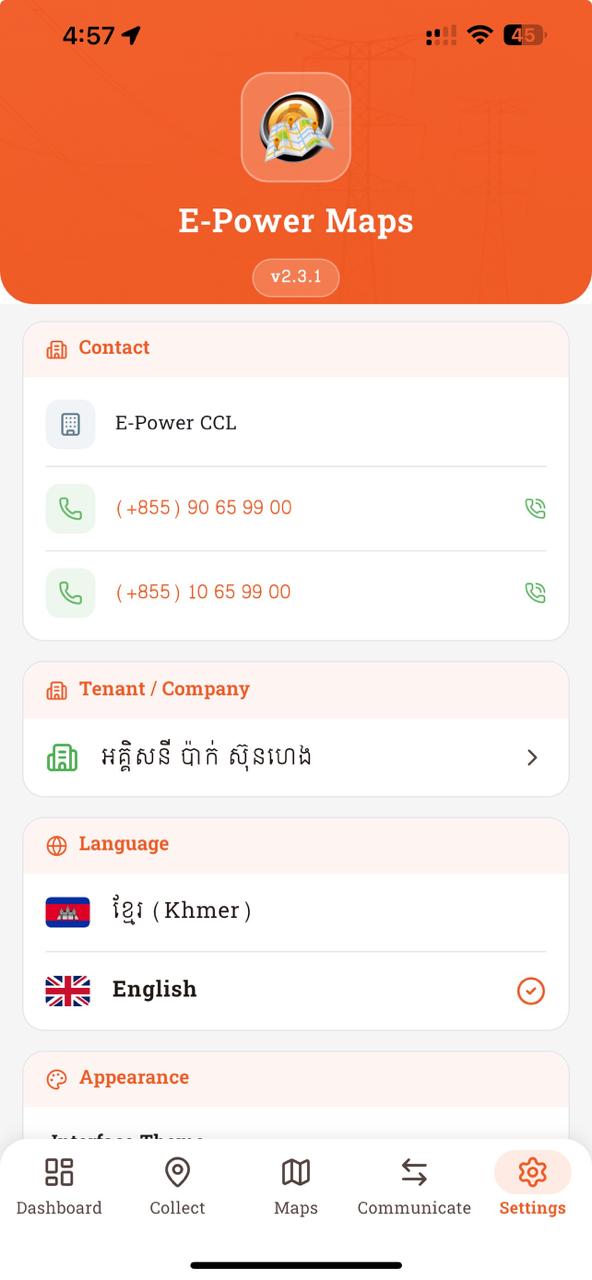
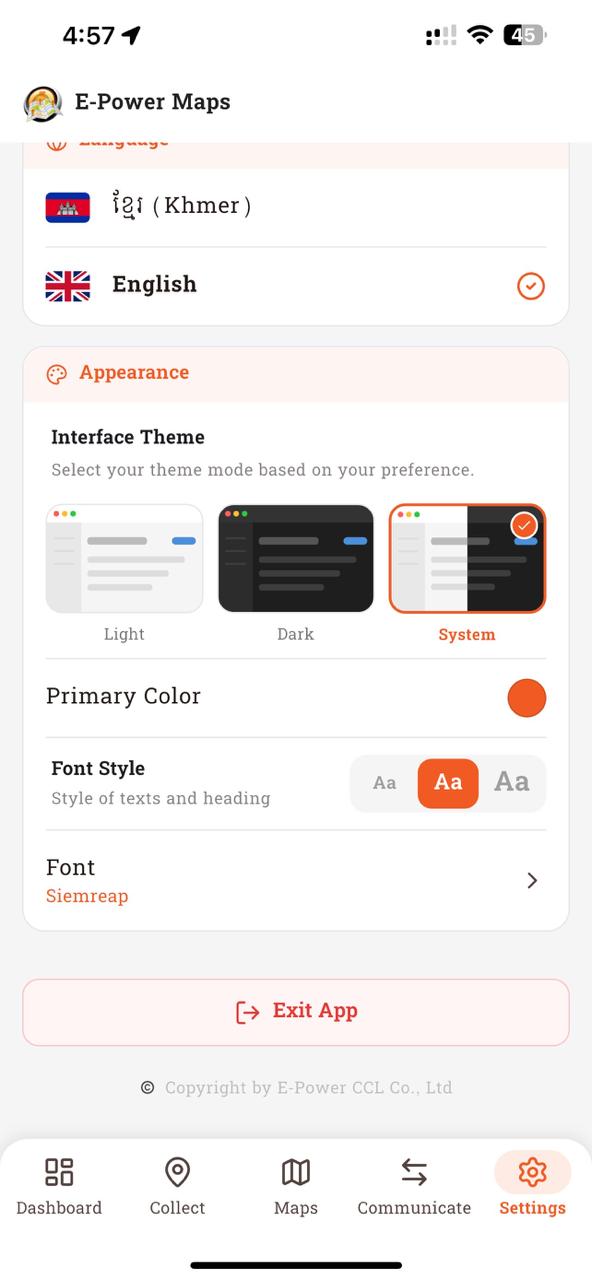
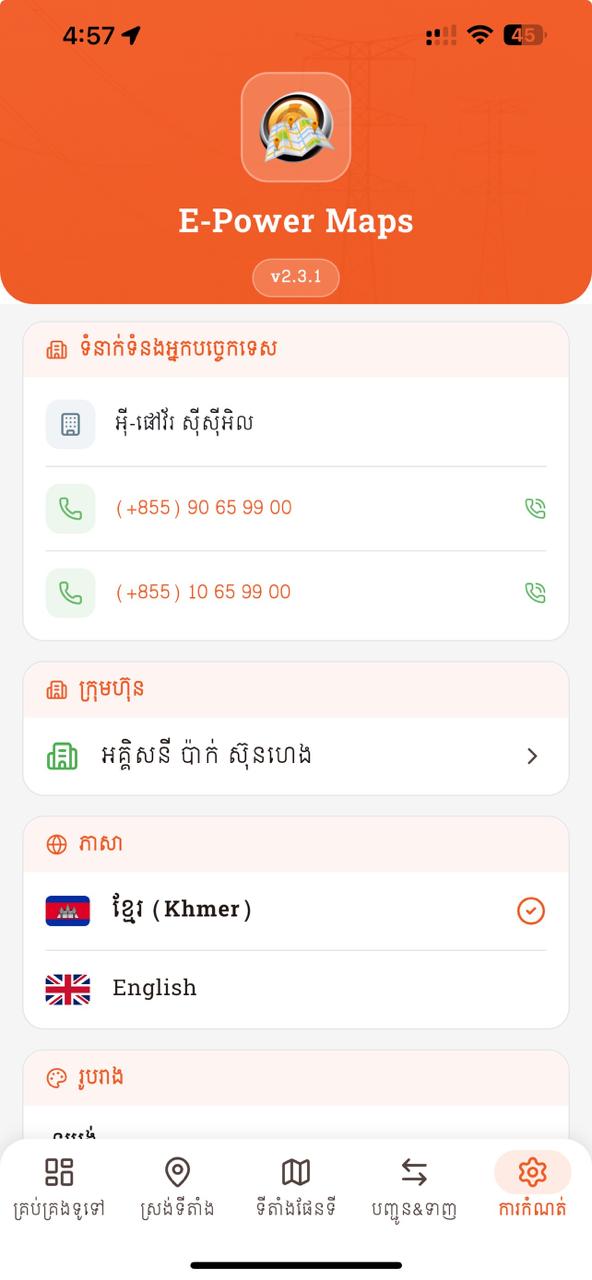
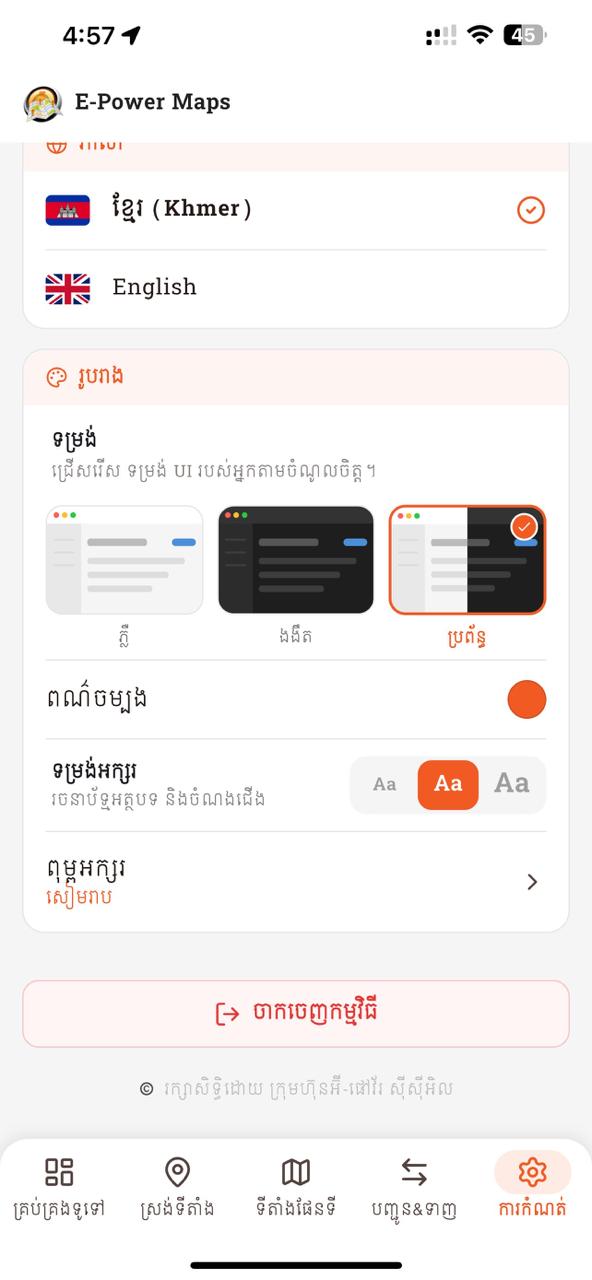
- 1Orange hero — app icon, brand name "E-Power Maps", and the version badge (
v2.3.1). Tap the version badge seven times to unlock Developer Mode (see chapter 15). - 2Contact card — organisation name + two phone rows. Tap the green phone icon to dial directly.
- 3Tenant / Company card — opens the Manage Companies screen (chapter 13).
- 4Language card — ខ្មែរ (Khmer) or English. The orange ✓ marks the active language; switching is instant — no app restart needed.
- 5Appearance — Interface Theme (Light / Dark / System with orange-bordered selection), Primary Color (tap the dot to open a 12-swatch picker), Font Style segmented control (
Aa / Aa / Aa= S / M / L), and Font Family (opens a bottom sheet of Khmer-capable fonts). - 6Exit App — red outline button at the bottom; confirms before quitting. Copyright footer below.
Primary Color picker · Font picker
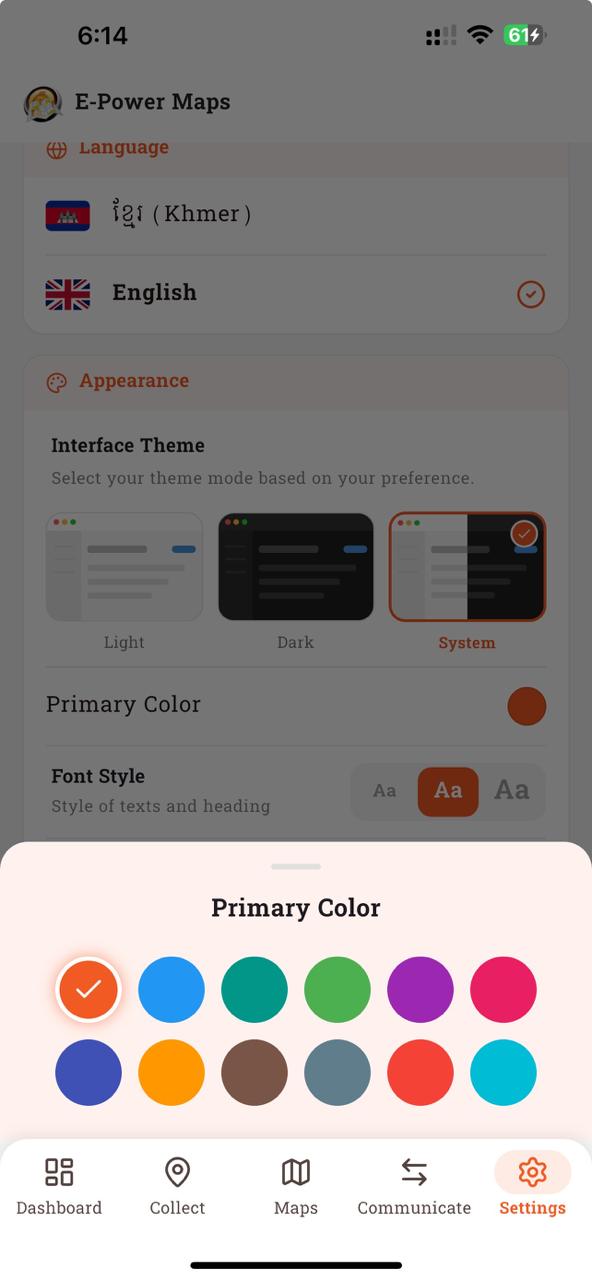
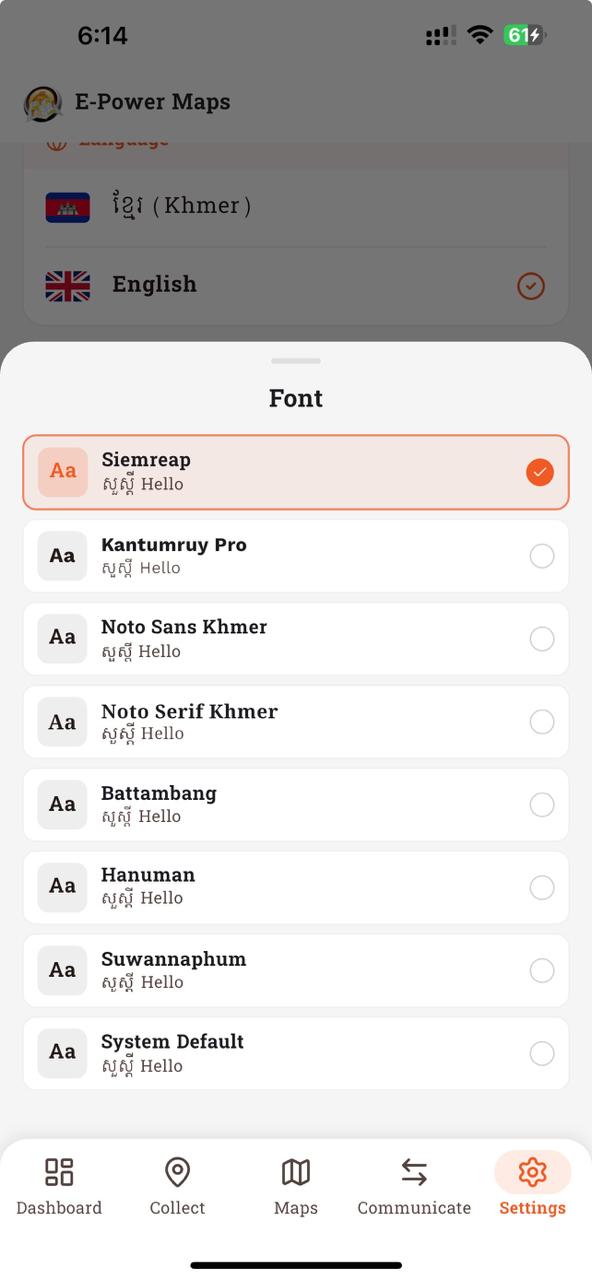
Tapping the Primary Color dot on the Appearance card opens a 12-swatch sheet (left). The active color has a checkmark inside an orange ring; every accent in the app — buttons, pills, links — updates immediately on pick. Tapping the Font row opens a font sheet (right) listing every Khmer-capable family bundled with the app (Siemreap is the default, followed by Kantumruy Pro, Noto Sans Khmer, Noto Serif Khmer, Battambang, Hanuman, Suwannaphum, and System Default). The little "សួស្តី Hello" snippet under each name previews how the font renders mixed Khmer + Latin text. Selection is instant — no app restart.
- Change language → UI re-renders immediately across all tabs.
- Toggle theme; confirm on admin / communication / collect pages.
- Swap font + size; Khmer rendering remains correct.
- 7-tap gesture + year PIN unlocks Developer page.
15. Developer Mode ➕
- Gated by 7 taps on version + current-year PIN (e.g. 2026).
- PIN entry is now a full-screen page (not a dialog): 4-digit dot indicator + numeric keypad + haptic feedback on wrong entry. Replaces the old
AlertDialog. - Add / activate alternative API base URLs (staging / prod / custom). Persisted in
tbl_dev_base_url.
The Developer Mode screens
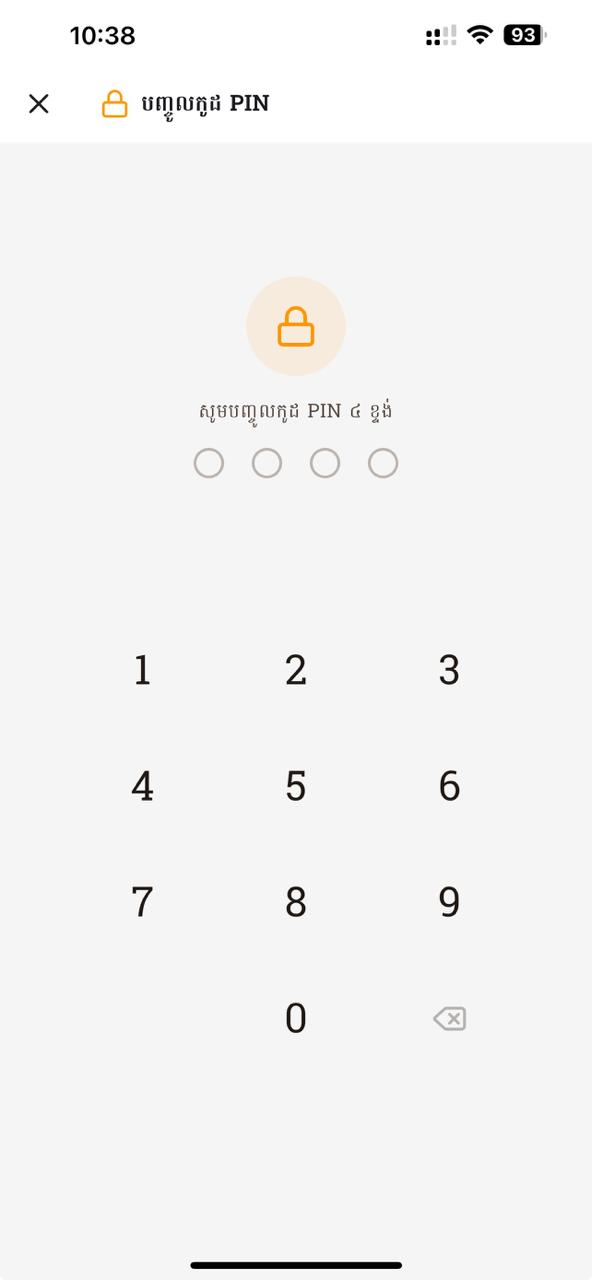
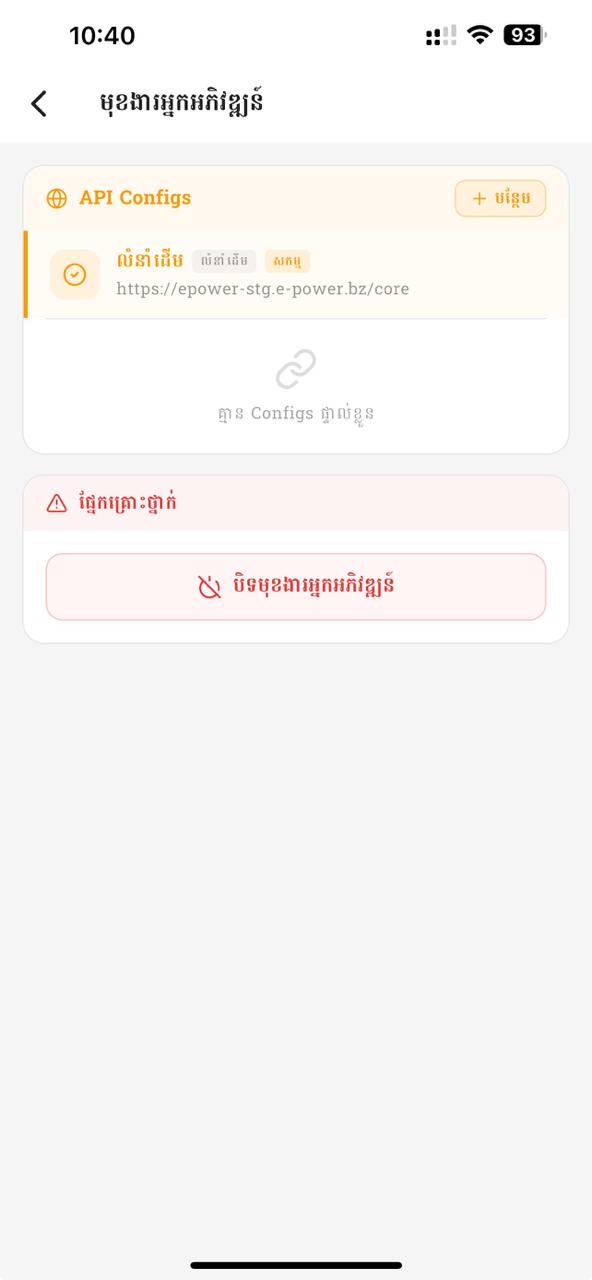
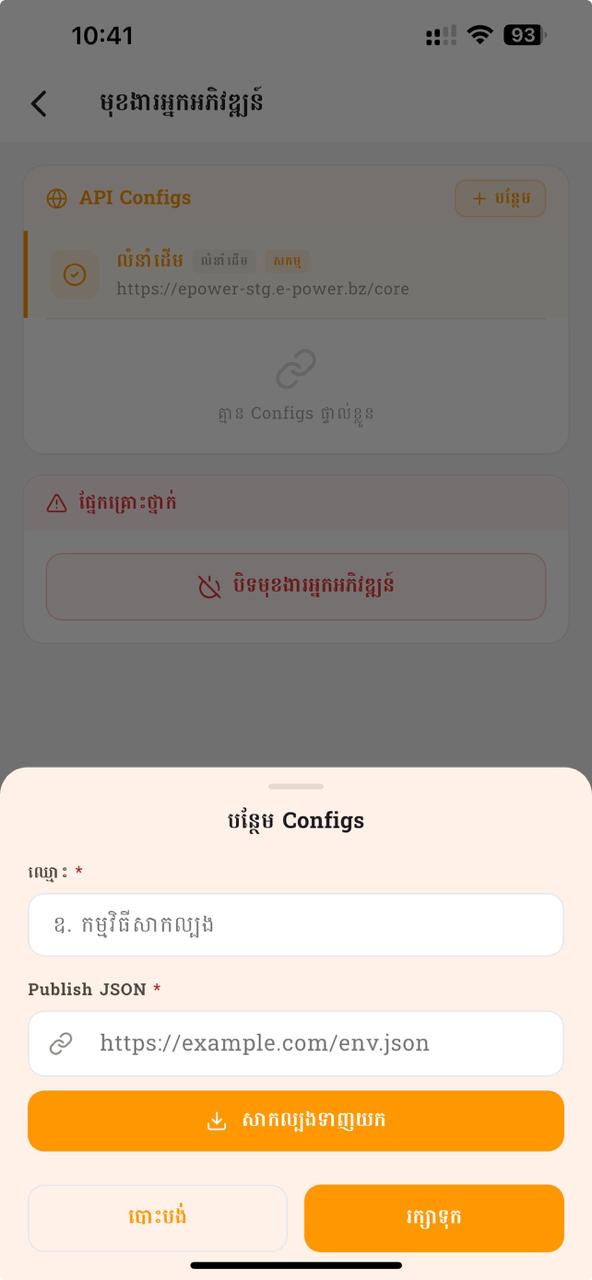
Unlocking: tap the version badge in Settings seven times → a full-screen PIN page opens (left). Enter the 4-digit PIN (the current year, e.g. 2026) on the numeric keypad. Once unlocked, the Developer Options screen (middle) lists the API Configs — each entry shows its name, an "Active" pill on the one in use, and the base URL. Tap "+ Add" to open the Add Config sheet (right): give it a name, paste the Publish JSON URL, then Save (or Import to pull a config file). The red "Disable Developer Mode" button at the bottom turns the whole feature back off.
- Unlock → override base URL → all requests use the new URL after save.
16. Navigation Map
- StatefulShellRoute.indexedStack with 4 bottom tabs.
- Tabs (in order): Dashboard / Collect / Maps / Communication / Settings.
- Admin sub-pages pushed above the shell.
- Splash → Collect on cold start.
The bottom navigation bar in context
The bottom navigation bar is visible on every shell page. The Collect screen below shows it in its natural place — five icons across the bottom, with the active tab highlighted in orange.
- 15 tabs (in order): Dashboard · Collect · Maps · Communicate · Settings — same order as the chapter numbering you're following.
- 2Active tab = orange pill background + bold label (brand colour). Here Collect is active.
- 3Nav bar has rounded top corners + top shadow, floating above the body content.
- 4The Maps tab launches Google Earth directly (it never sets the current tab); the other four are real shell branches with their own back-stack.
- 5Full-screen pages — Manage Companies, Developer Mode, Collection Analysis — open above the main screens, so the bottom bar is hidden while they're open.
Have a question or found a bug? Reach the developer on Telegram — scan the QR code, or tap the image to open the chat directly.